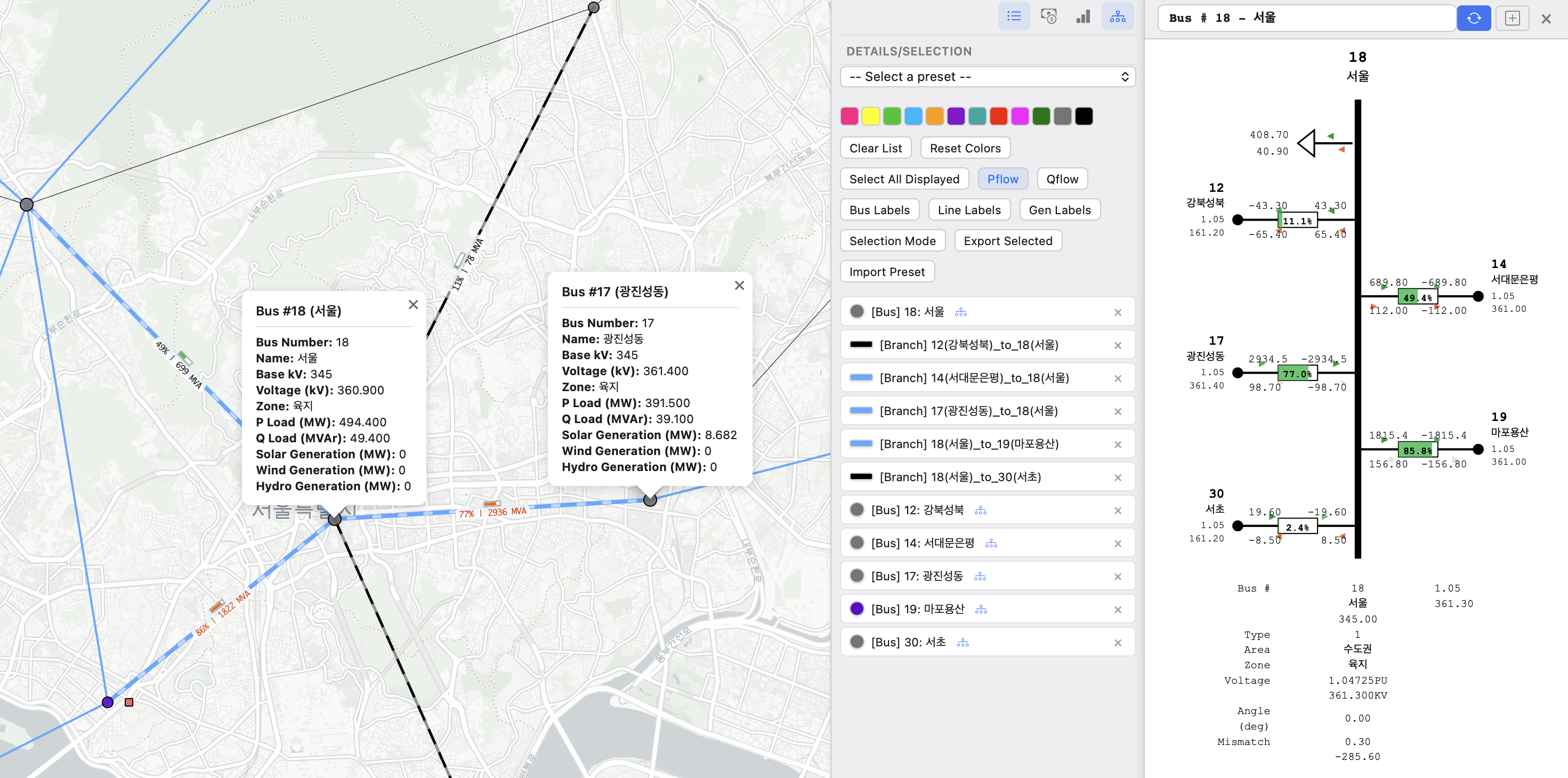
User Interface
User Interface
Practical step-by-step guide for using KPG View to visualize and analyze power system networks.
1. Top Bar
-
☰ Layers button: toggles the Layers panel, where you configure what to display on the map.
-
File: click to select a result file (e.g.,
*.geojson).- The currently loaded file name is shown next to the Open button.
-
Folder: click to select a folder which includes the result files (e.g.
*.geojson).- For time-series results, the app may ask you to select a results folder to load time-series data.
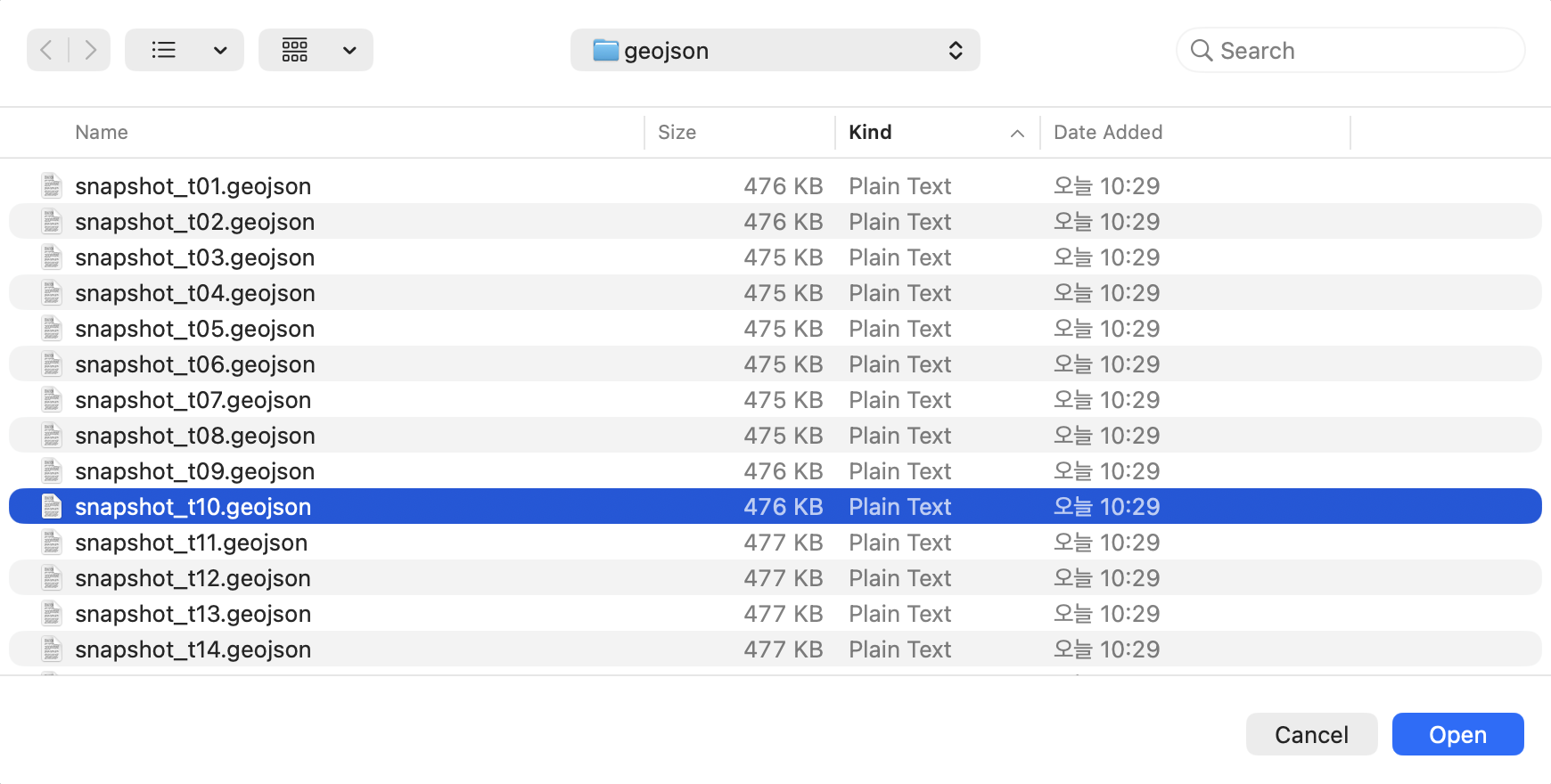
-
Time-Series Playback (24h): When you load a time-series result (e.g., a 24-hour simulation), KPG View provides playback controls at the top of the map so you can review hours 1 → 24 continuously.
- Timeline slider: drag to scrub to a specific hour (frame) and instantly update the map.
- Play / Pause: animate the results over time.
- Step controls (◀ / ▶): move one hour backward/forward.
- Hour indicator (e.g.,
1 / 24): shows the current time step and the total number of steps. - Loop: repeat playback from the last hour back to hour 1.
- Speed (e.g.,
2x,1x,0.5x): control the playback rate.
-
Search: use the search box to quickly find and zoom to network elements.
- Bus: search by bus name or bus ID/number
- Branch/Line: search by line/circuit ID or from/to bus ID (From/To)
- …
-
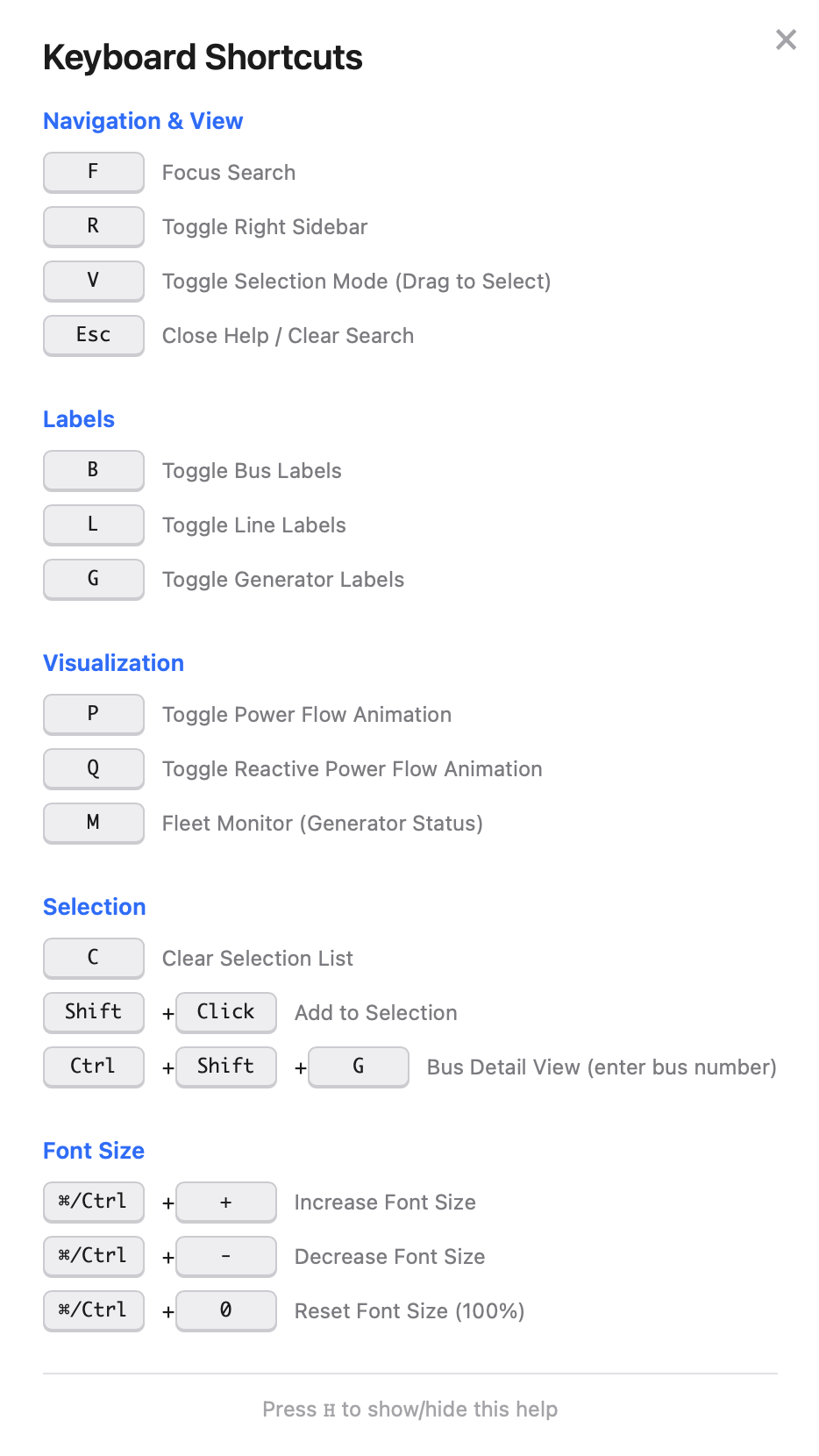
Help: opens a keyboard-shortcuts panel (press H to show/hide).
- Navigation & View
- Labels
- Visualization
- Selection
- Font Size
- ☰ Details/Selection button: toggles the Details/Selection panel, where you configure what to display on the map.
2. Layers
Feature Types
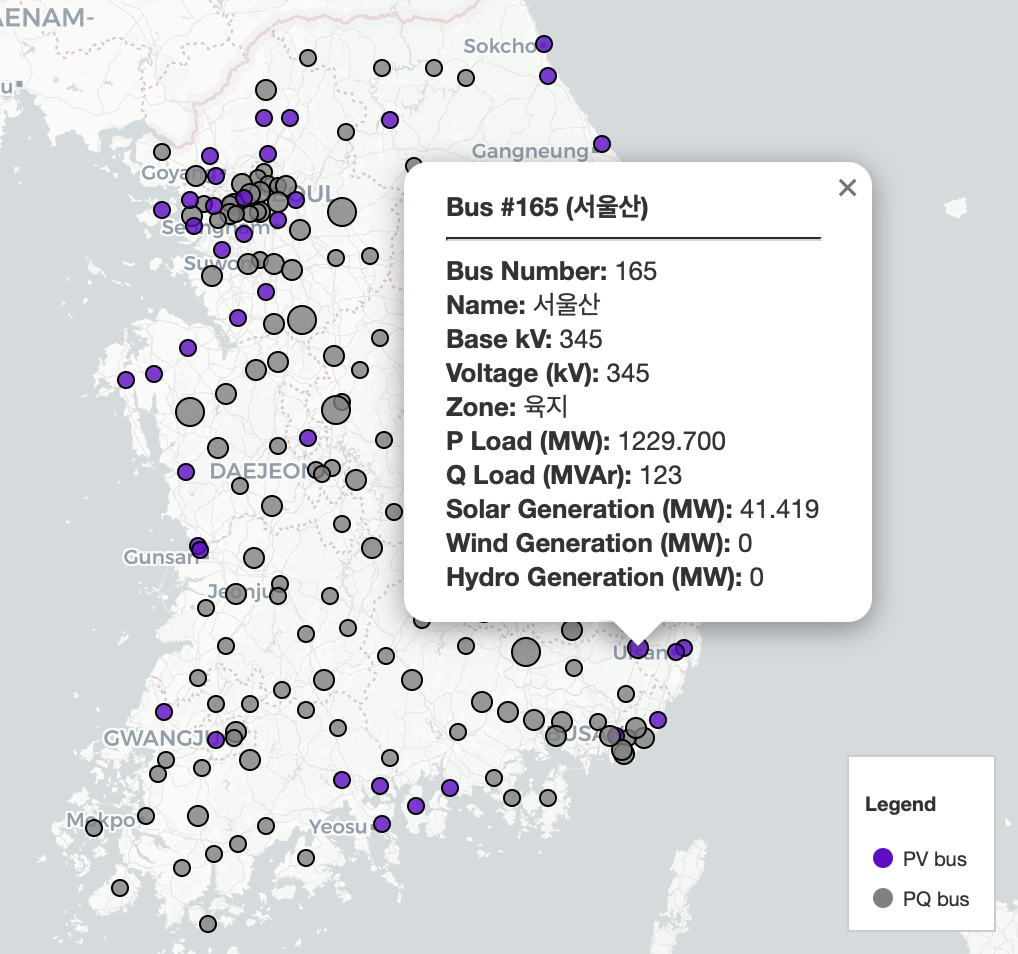
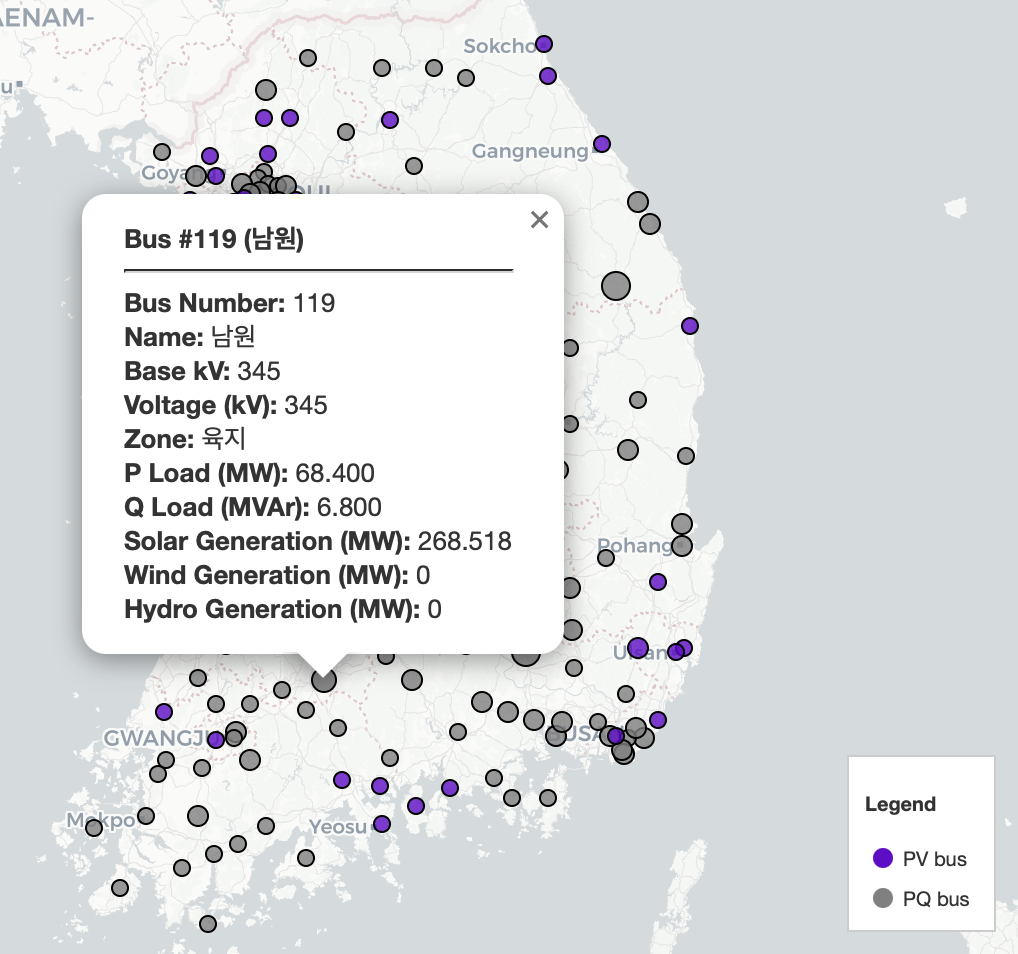
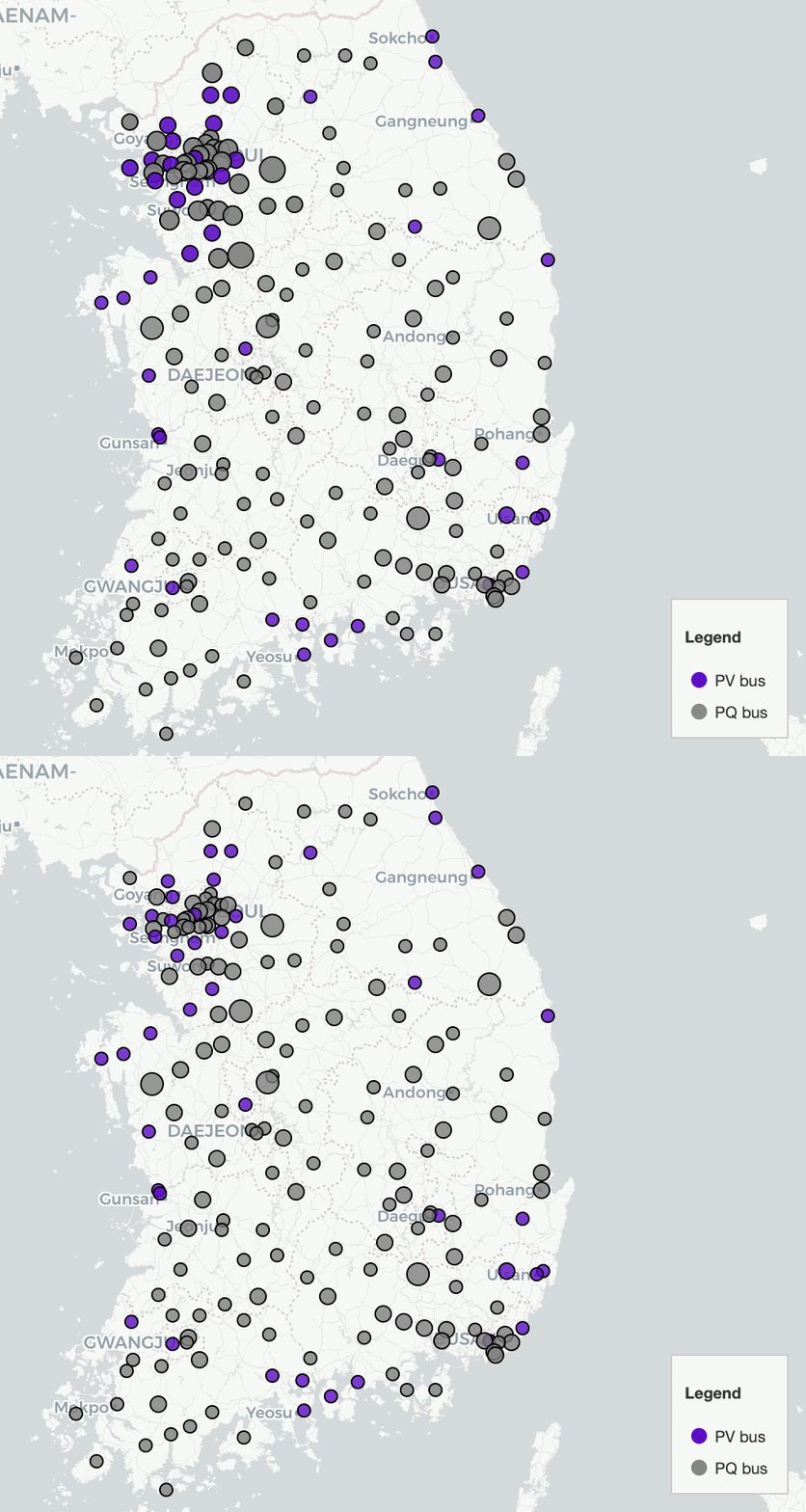
- Bus
- Enable Bus to display bus locations on the map.
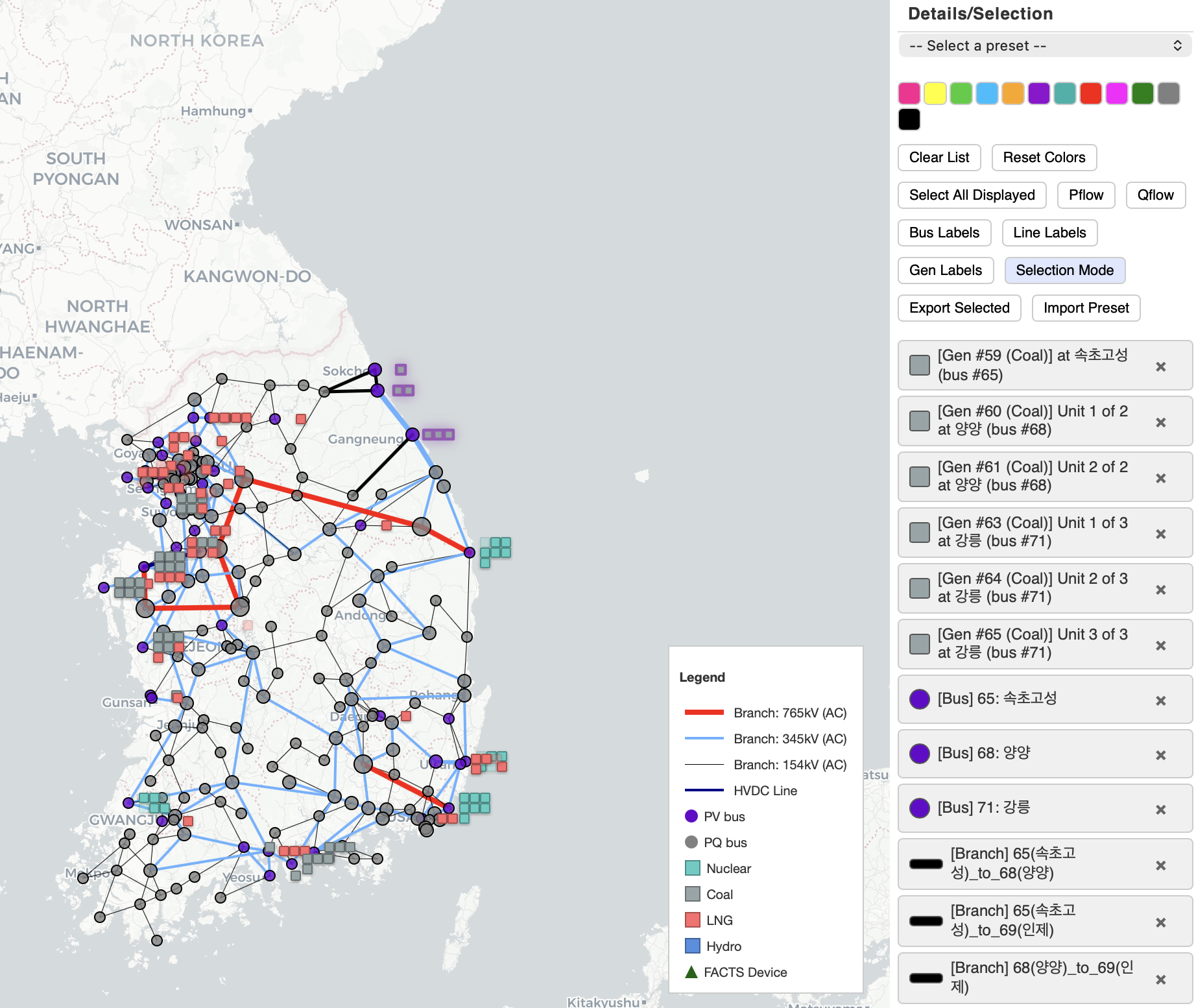
- Buses are categorized as PV or PQ buses (the legend is included in the image below).
- PV bus
- PQ bus
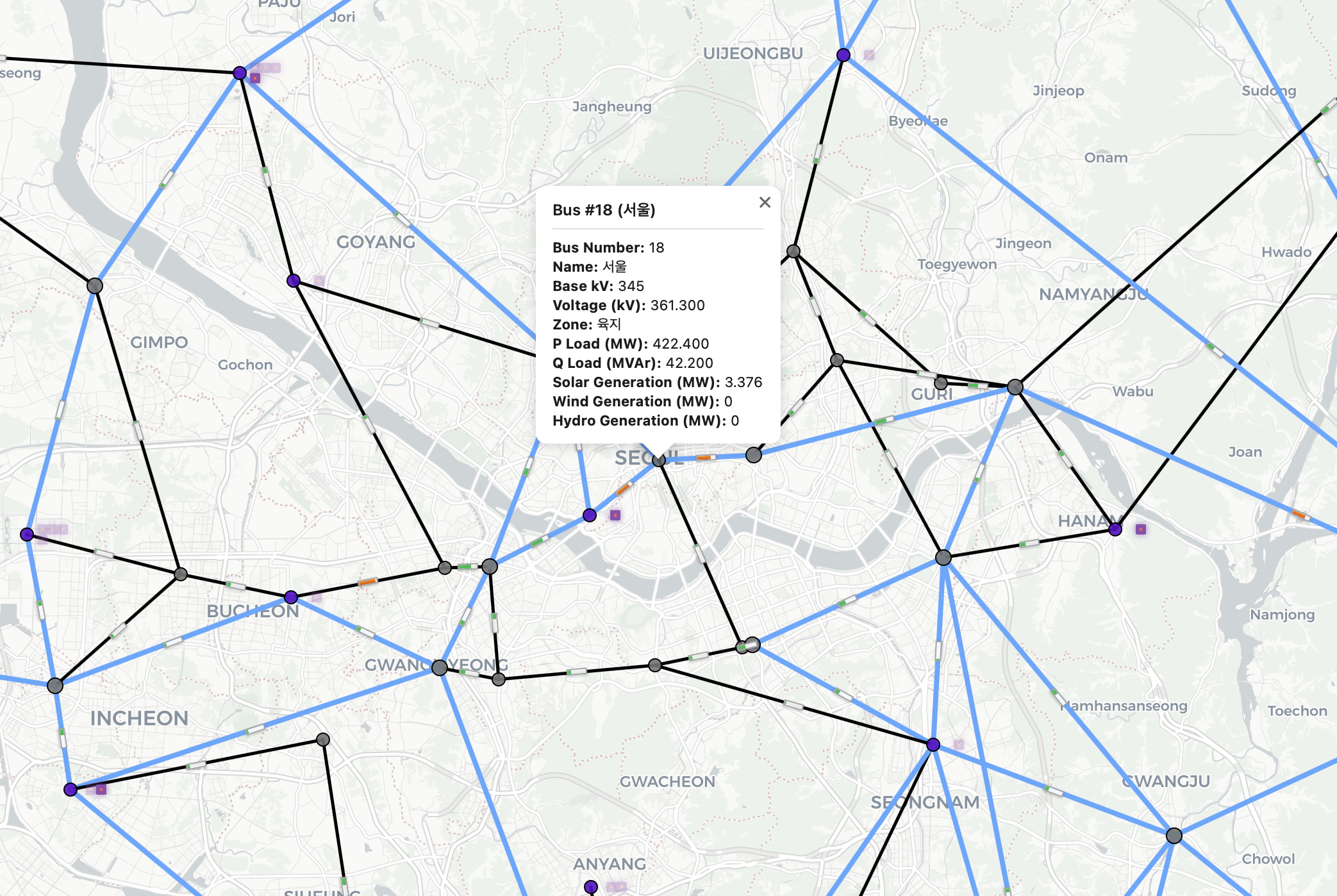
- Click a bus marker to open an information popup.
- Bus Number/Name
- Base kV
- Voltage (kV)
- Zone
- Load (P/Q)
- Renewable Generation (solar/wind/hydro) (when available)
- Generator
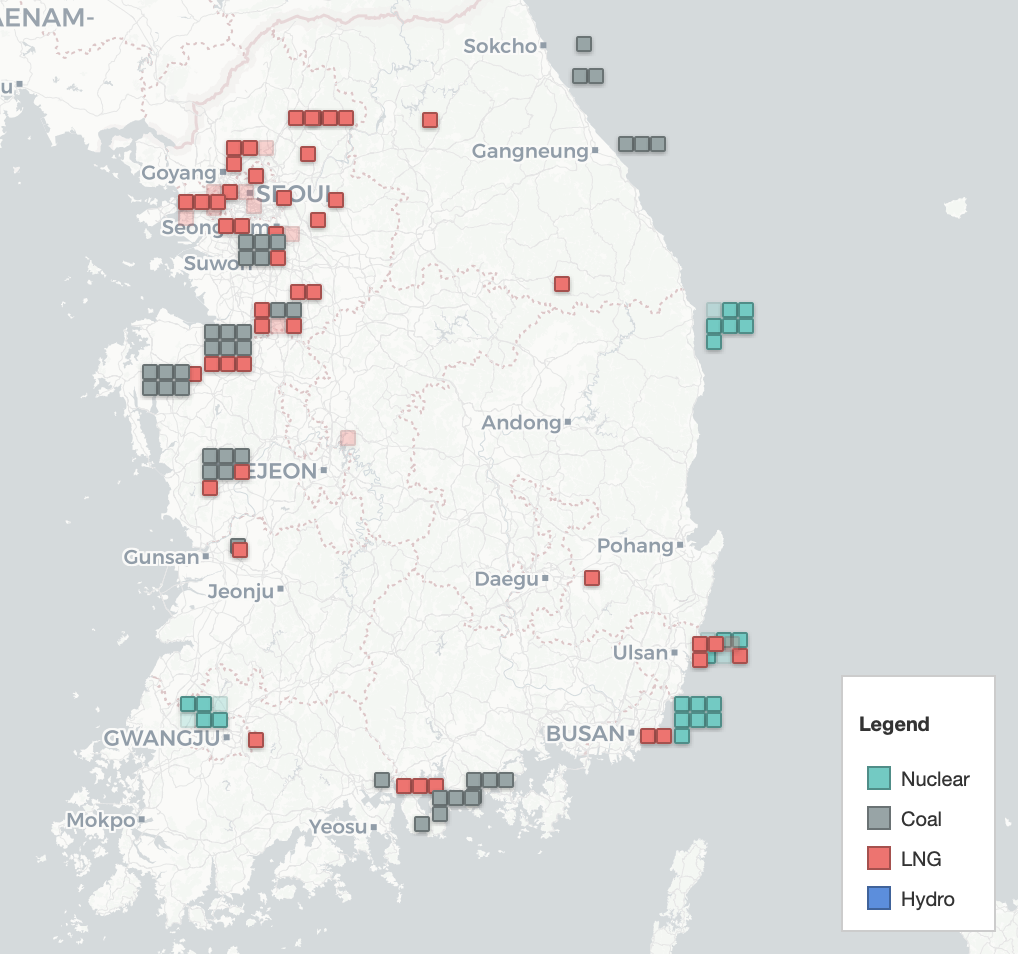
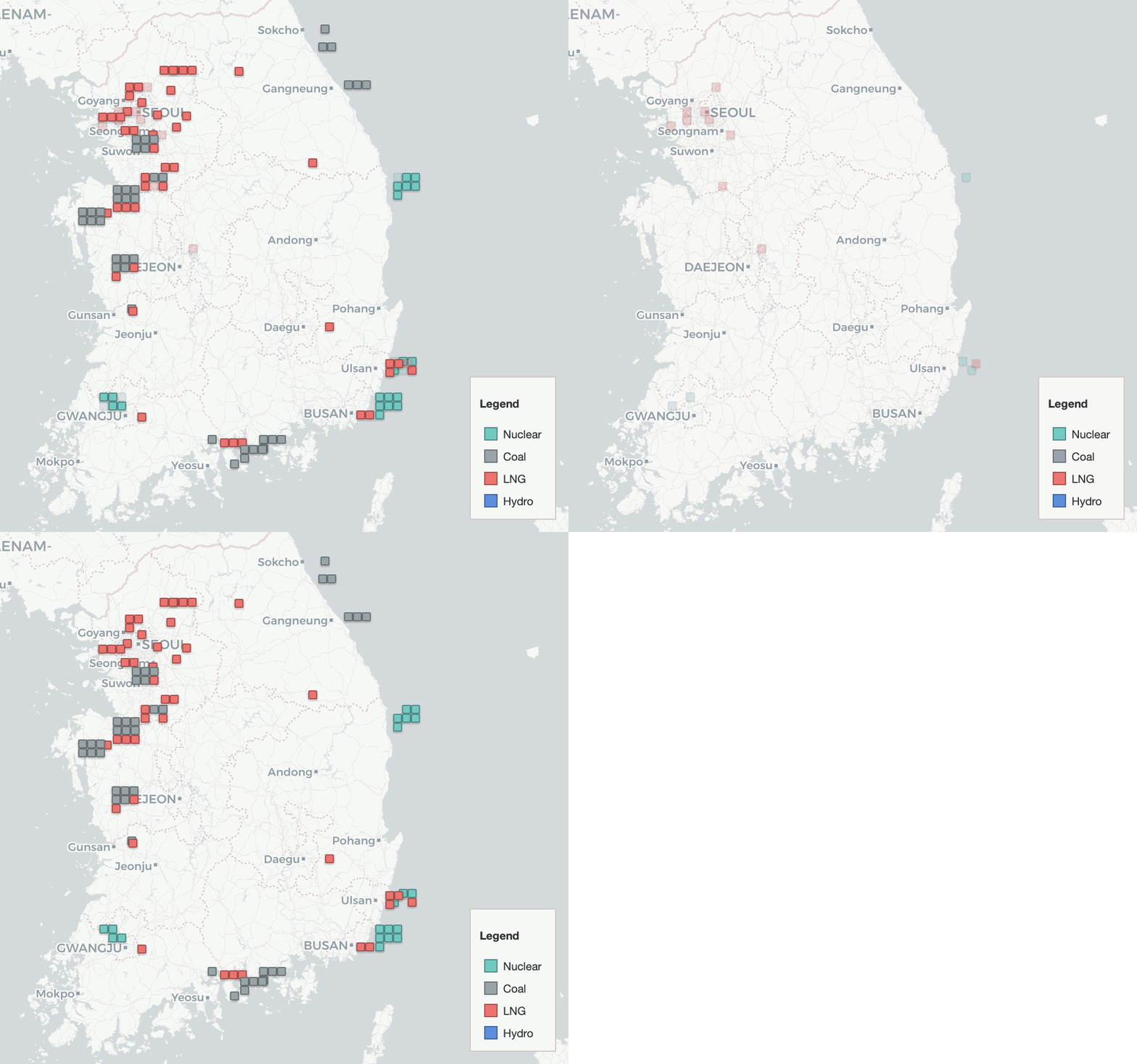
- Enable Generator to display generator units on the map (square markers).
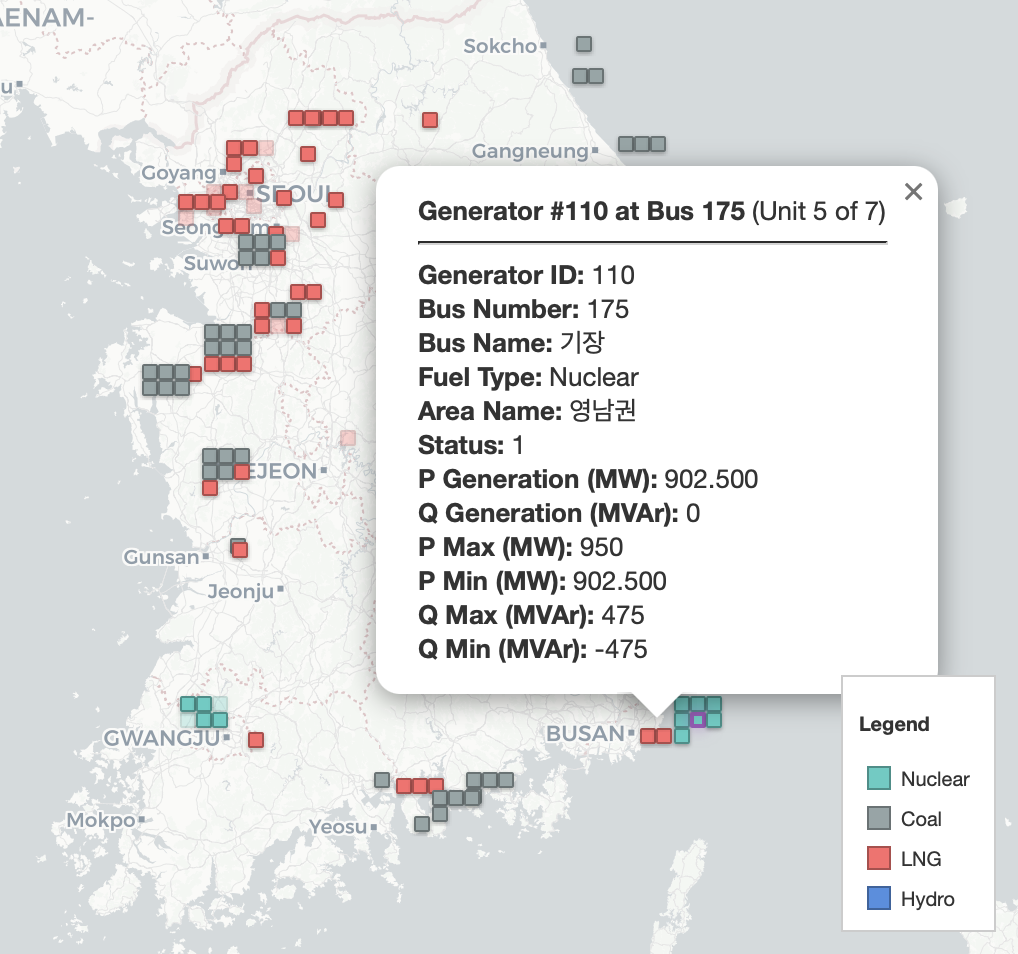
- Each square represents a single generator unit. If you see a “stack” of squares at the same location, multiple units share the same bus/plant location (e.g., Unit 5 of 7).
- Fuel types (Nuclear/Coal/LNG/Hydro) are indicated in the legend included in the image below.
- A transparent marker indicates an offline unit (not committed /
Status = 0). A solid marker indicates an online unit (Status = 1). - Click a generator marker to open an information popup.
- Generator ID
- Bus Number/Name
- Fuel Type
- Area Name
- Status
- P/Q Generation
- P/Q Limits (Min/Max)
- Branch (AC)
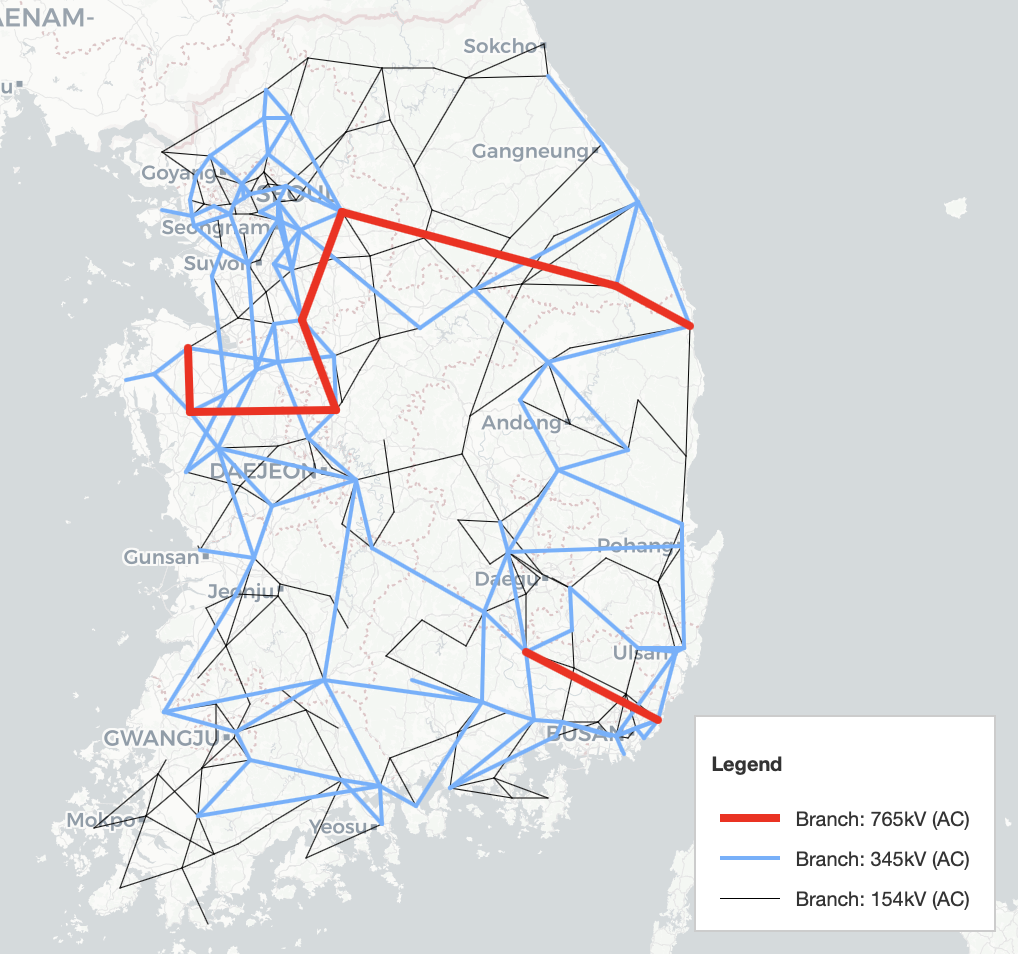
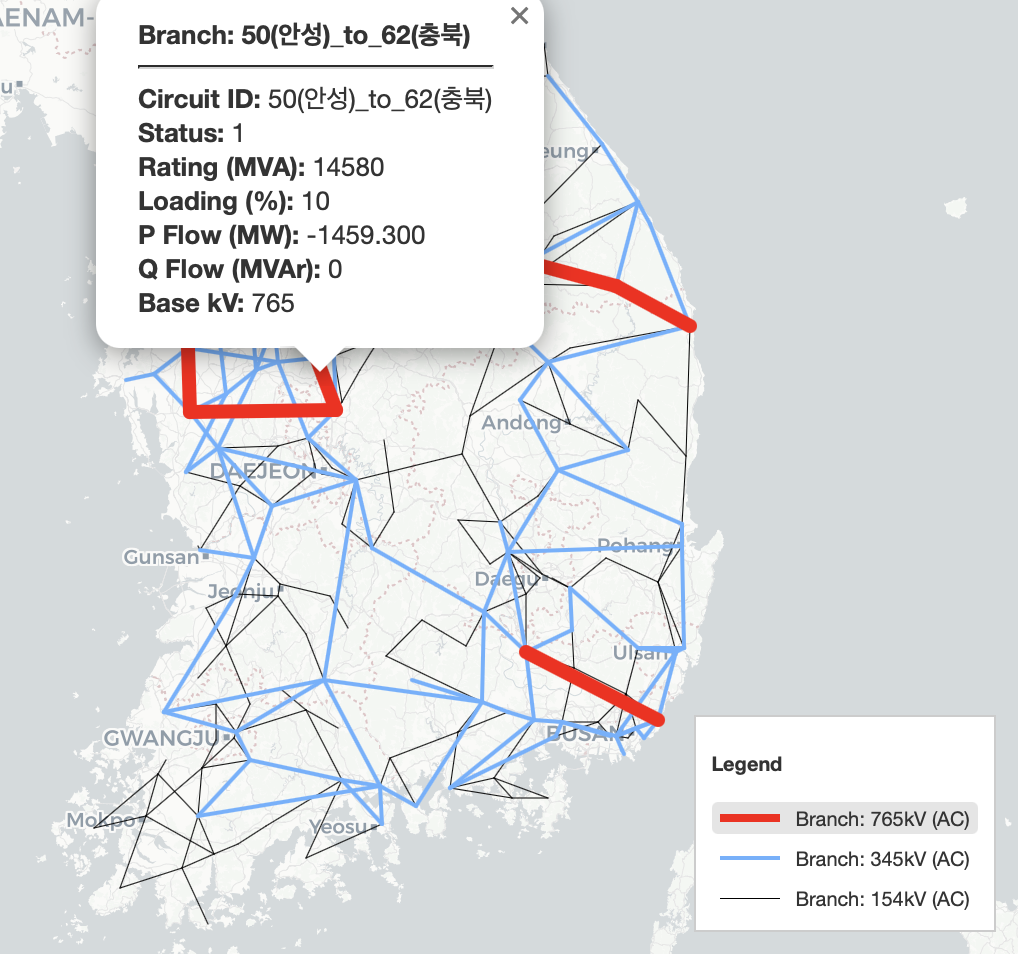
- Enable Branch (AC) to display AC transmission lines on the map.
- Voltage levels (e.g., 765/345/154 kV) are indicated in the legend included in the image below.
- Click a line to open an information popup.
- Circuit ID
- Status
- Rating (MVA)
- Loading (%)
- P/Q Flow
- Base kV
- HVDC Line
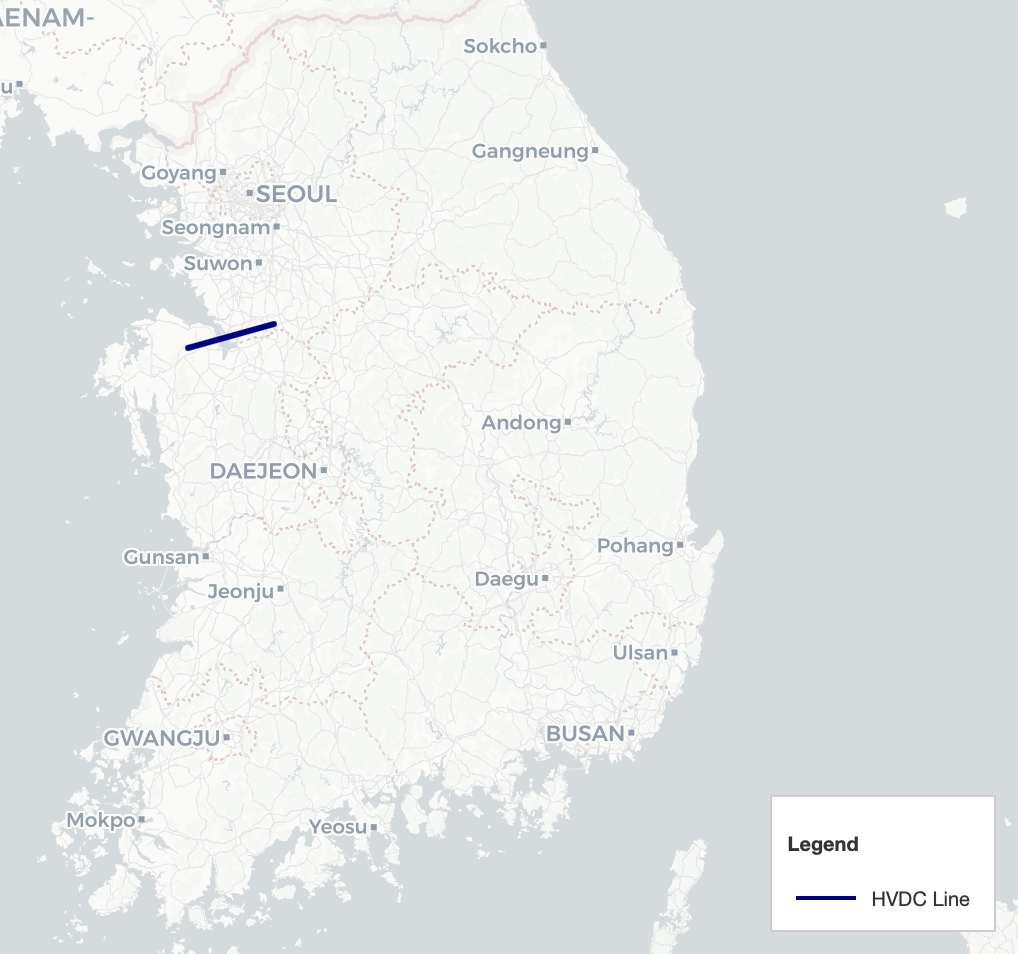
- Enable HVDC Line to display HVDC links on the map.
- HVDC lines are shown as a separate layer, and the legend is included in the image below.
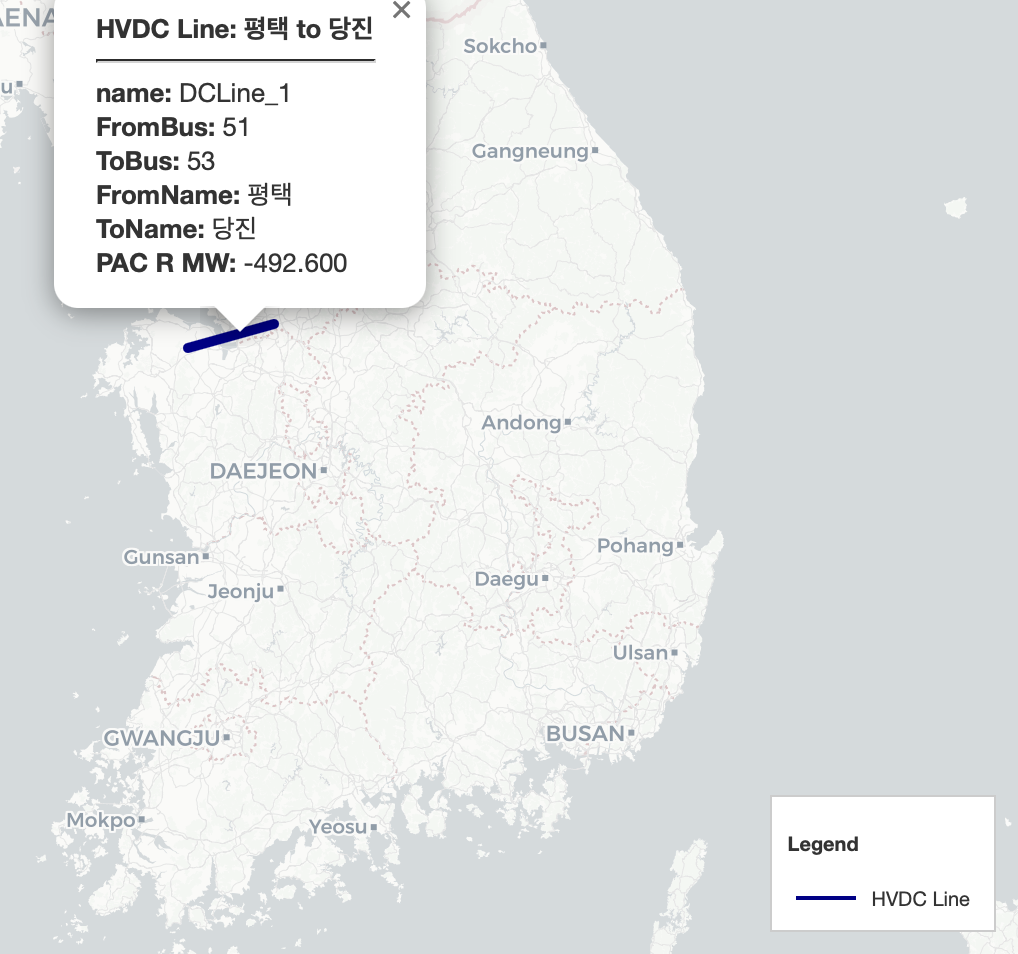
- Click an HVDC line to open an information popup.
- Name
- From/To Bus Number & Name
- PAC R (MW): HVDC power transfer value
Renewable Energy Visualization
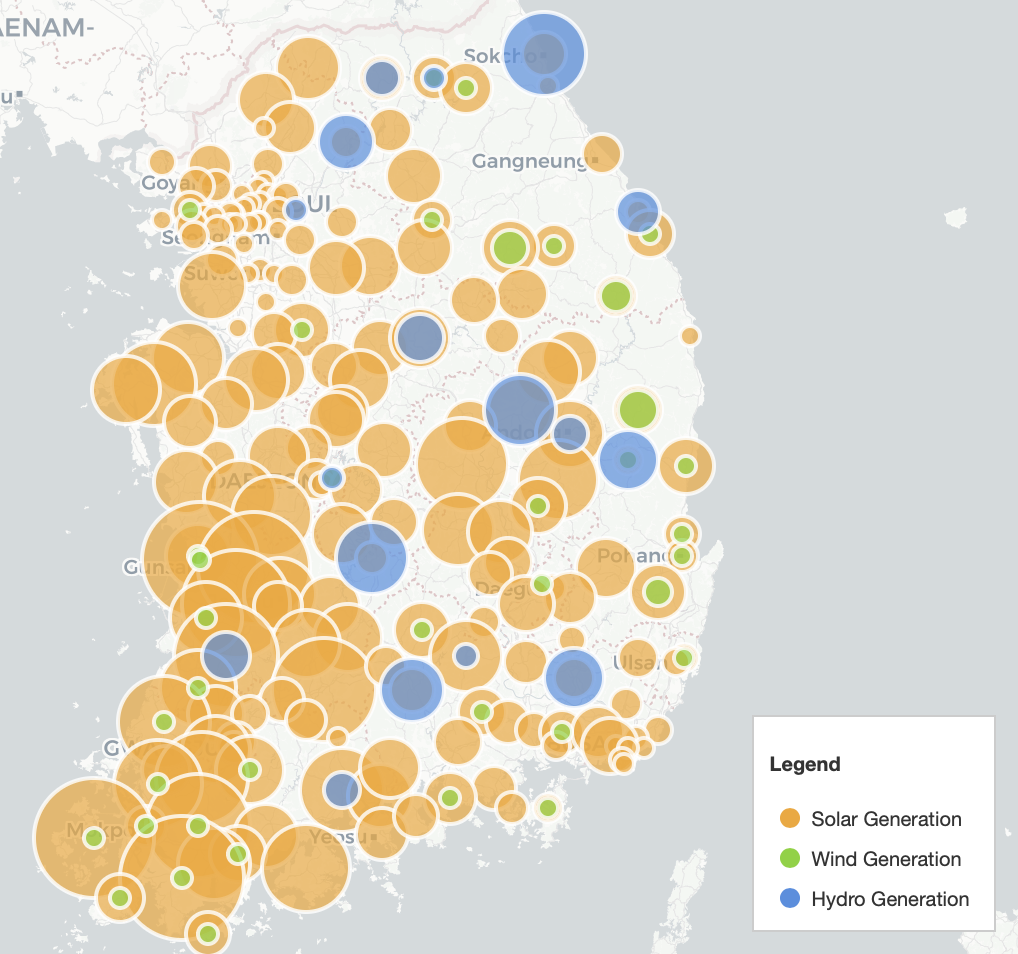
- Toggles:
- Solar
- Wind
- Hydro
- The selected resource(s) are shown as circles on the map. (Circle size is relative)
- Click a circle to open a popup.
- Generation (MW)
- Bus ID
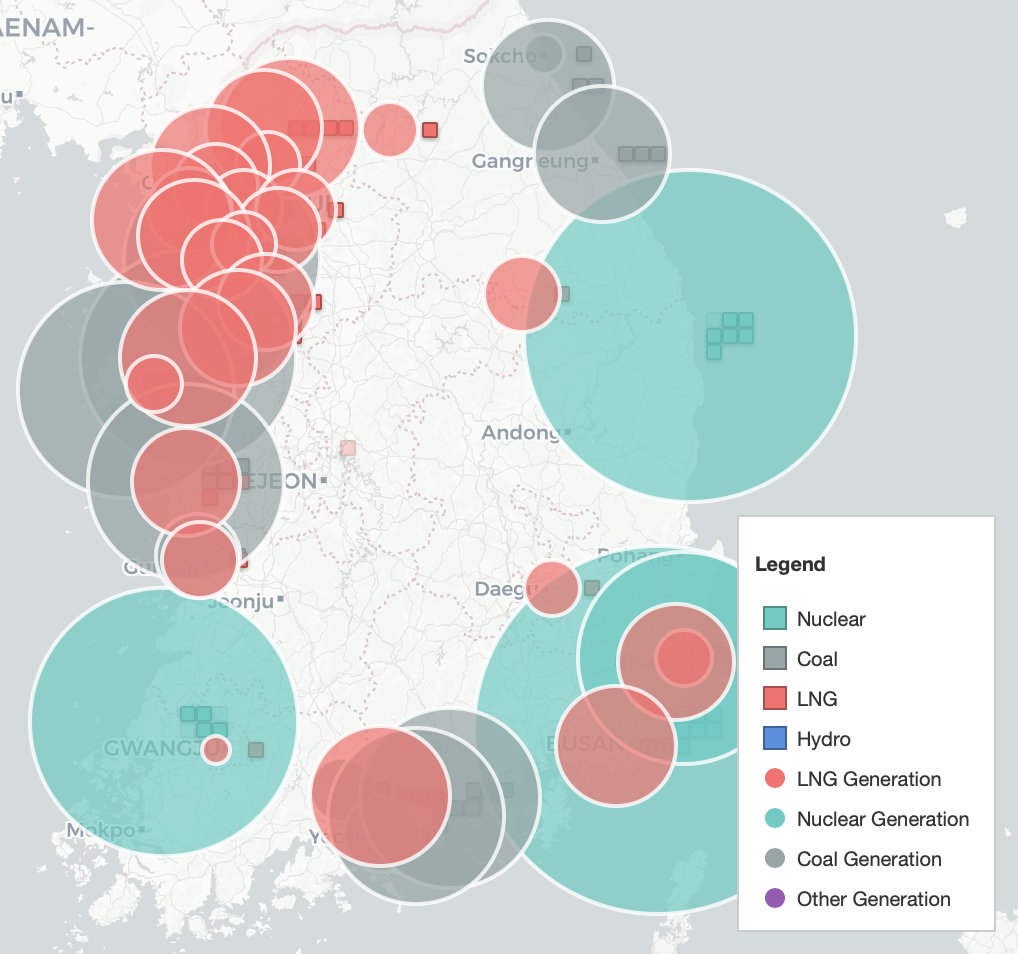
Conventional Generation Visualization
- Toggles:
- LNG
- Nuclear
- Coal
- Other
- The selected fuel category(ies) are shown as circles on the map. (Circle size is relative)
- Click a circle to open a popup.
- Generation (MW)
- Bus ID
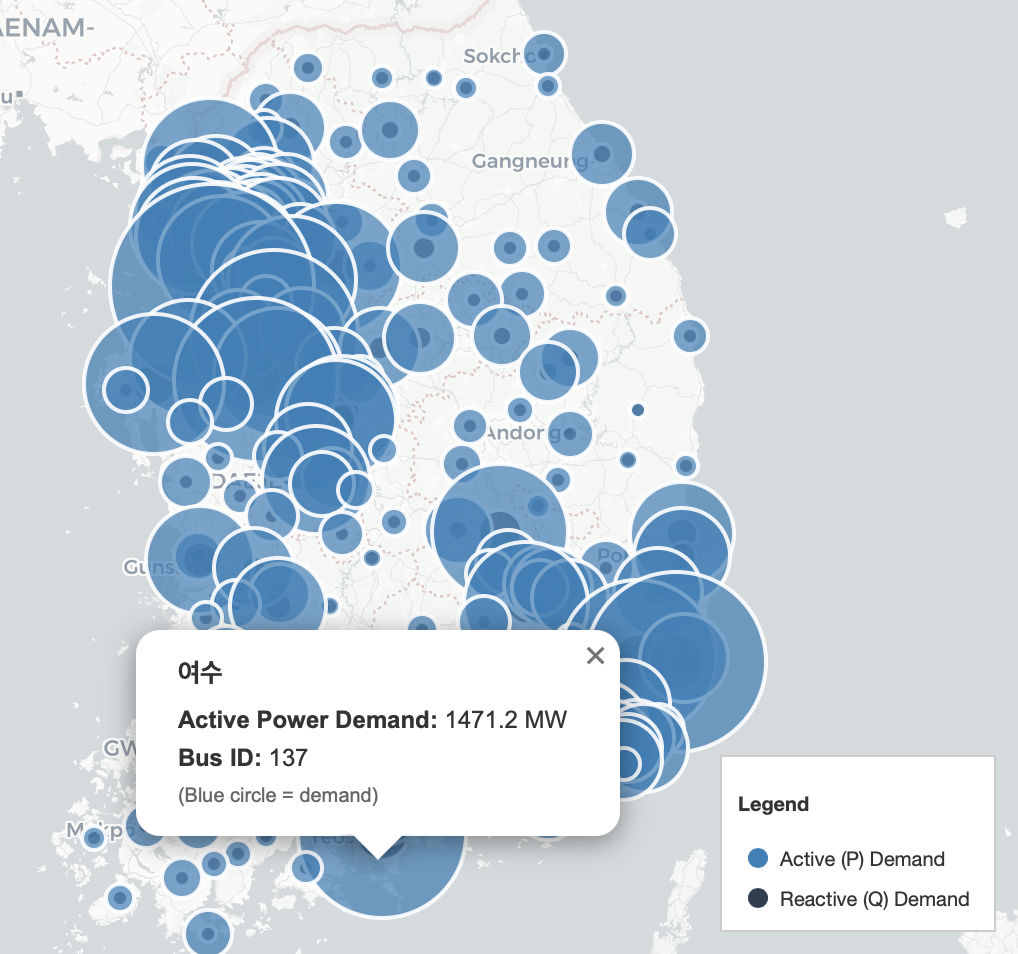
Demand (Load) Visualization
- Toggles:
- Active (P)
- Reactive (Q)
- The selected demand component is shown as circles on the map. (Circle size is relative)
- Click a circle to open a popup.
- Demand
- Bus ID
Circle Size Scale
- Use the Circle Size Scale slider to adjust the global scale of circle-based overlays (renewables, conventional generation, demand).
- Increasing the scale makes circles larger; decreasing the scale makes circles smaller.
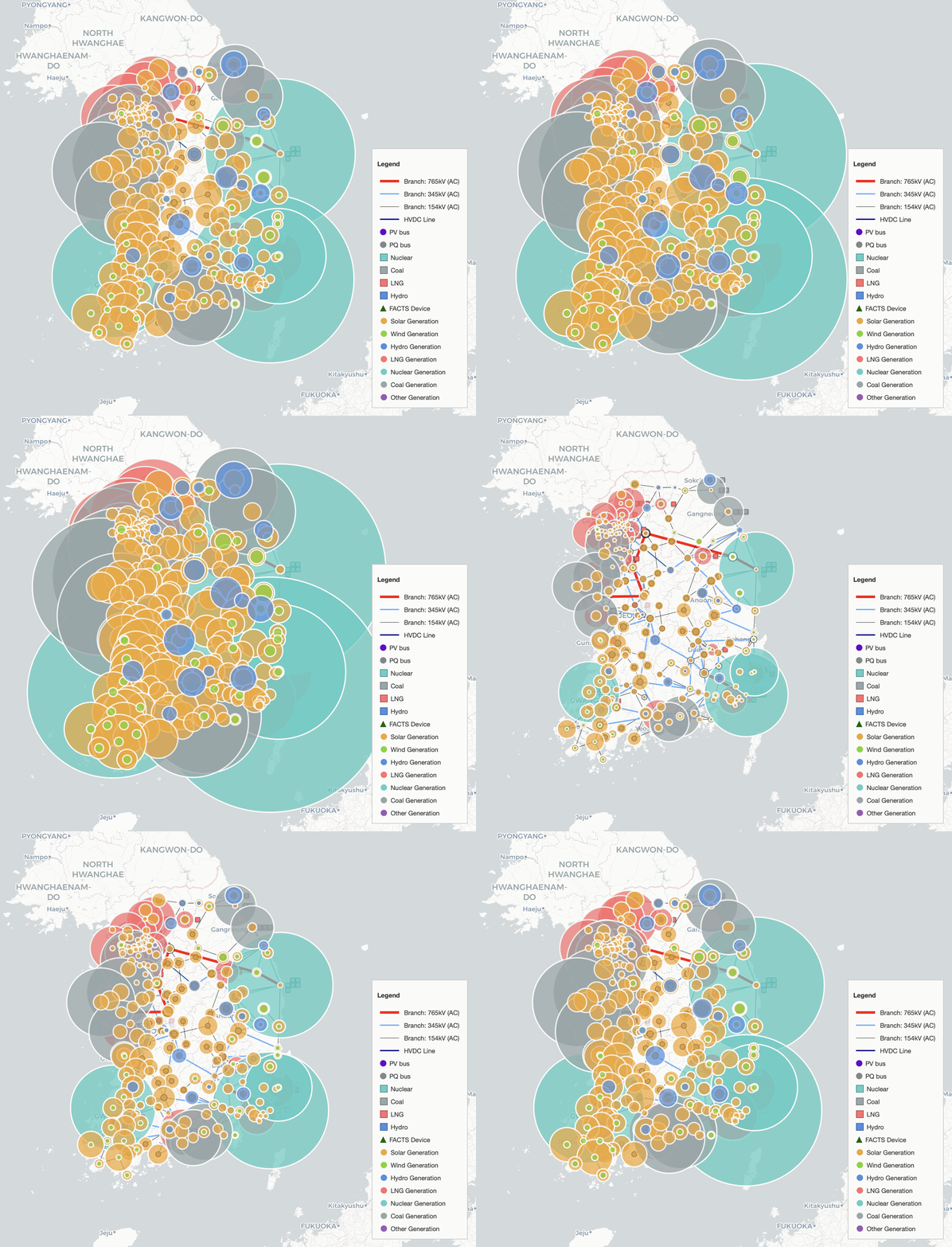
Example: adjusting the Circle Size Scale (50% ~ 150%) slider changes the displayed circle sizes.
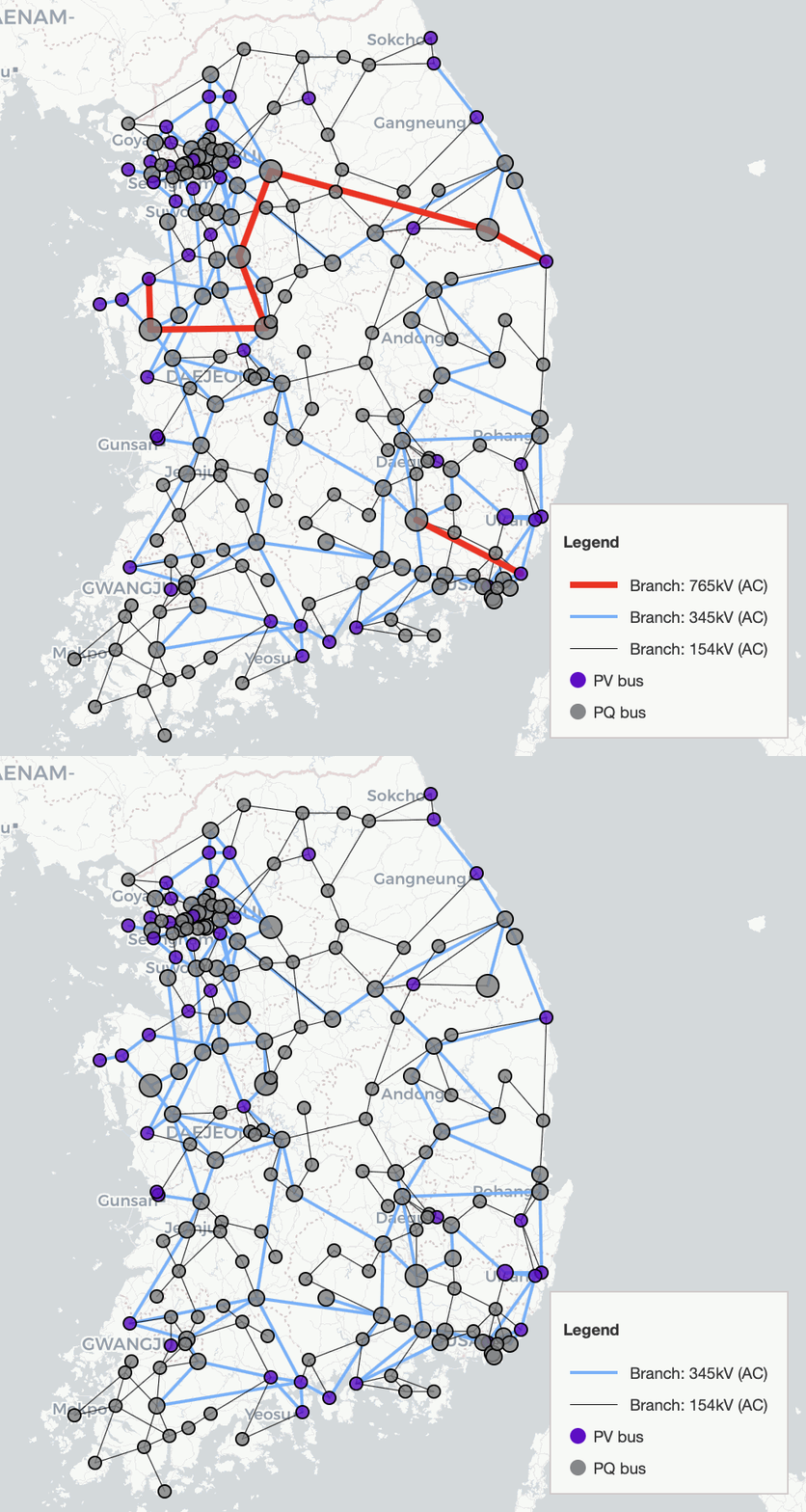
Line Voltages (Branch)
- You can toggle which AC branch voltage levels are displayed:
- 765 kV
- 345 kV
- 154 kV
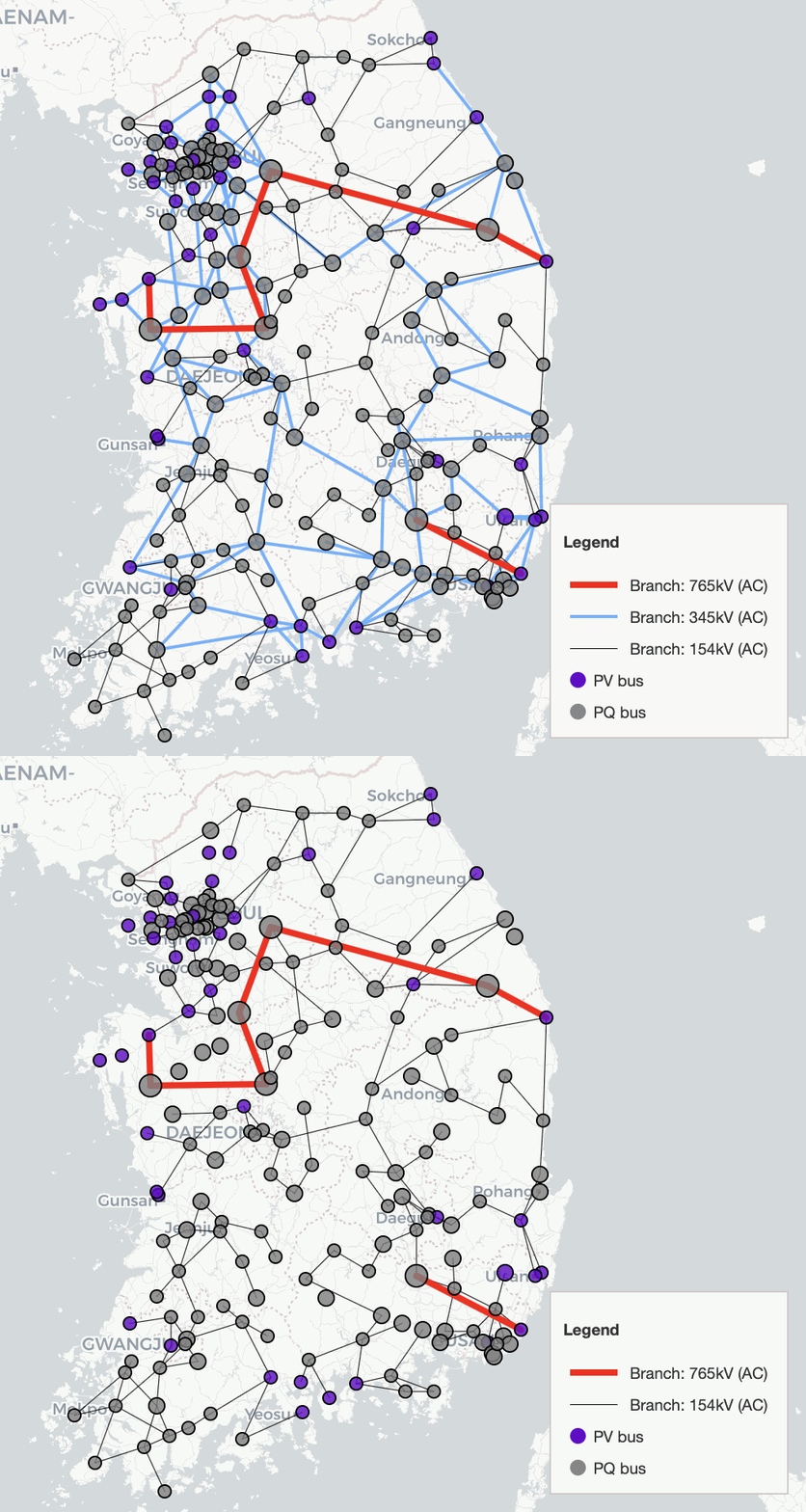
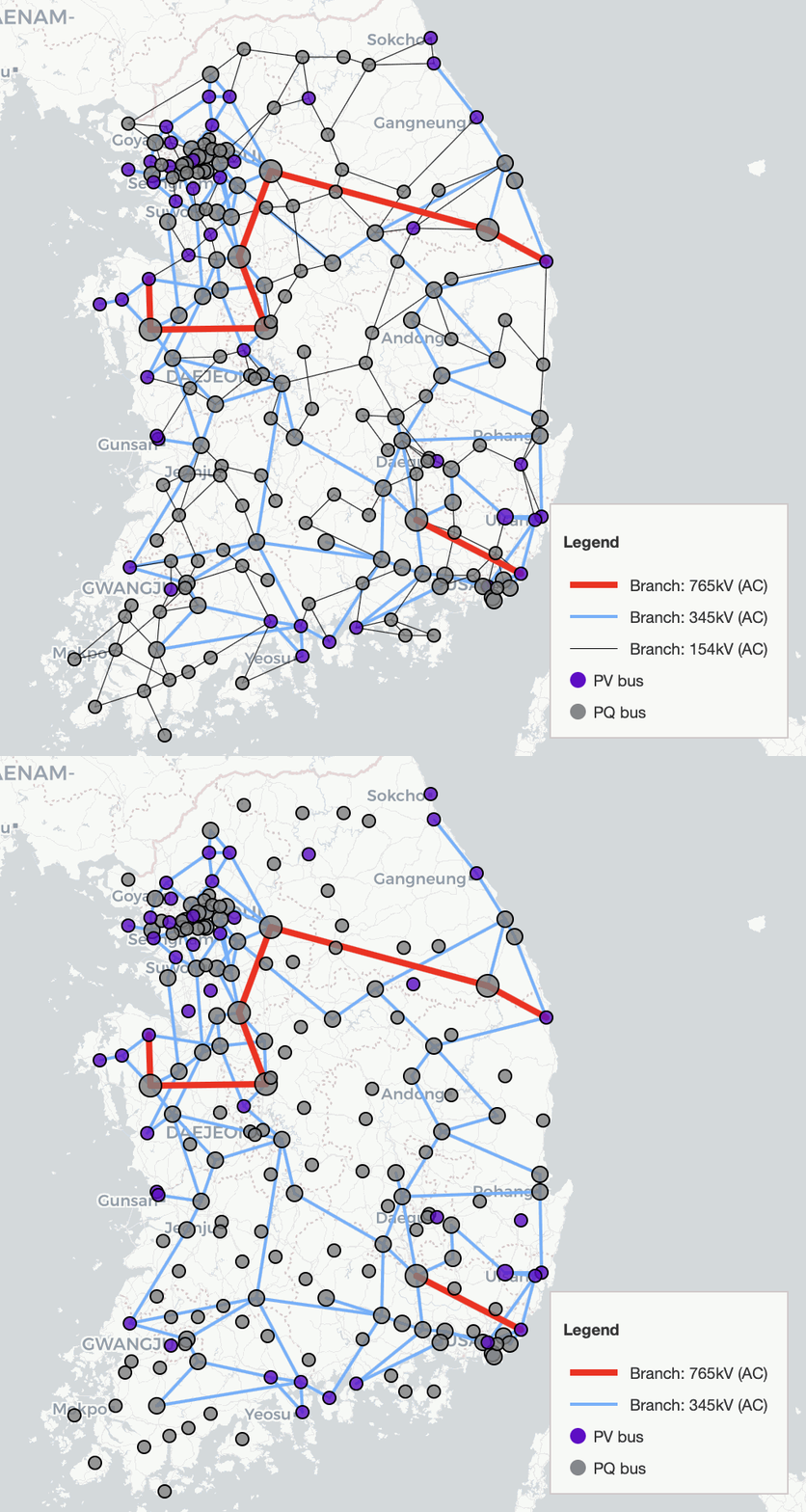
Line Loading
- Loading Bars: loading bars on branches (bar size reflects Loading (%)).
- Labels: numeric branch values (e.g., Loading (%) and P Flow (MW)).
- Loading (%)
- P Flow (MW)
- Selected Only: hide low-loading branches and display bars only above the threshold.
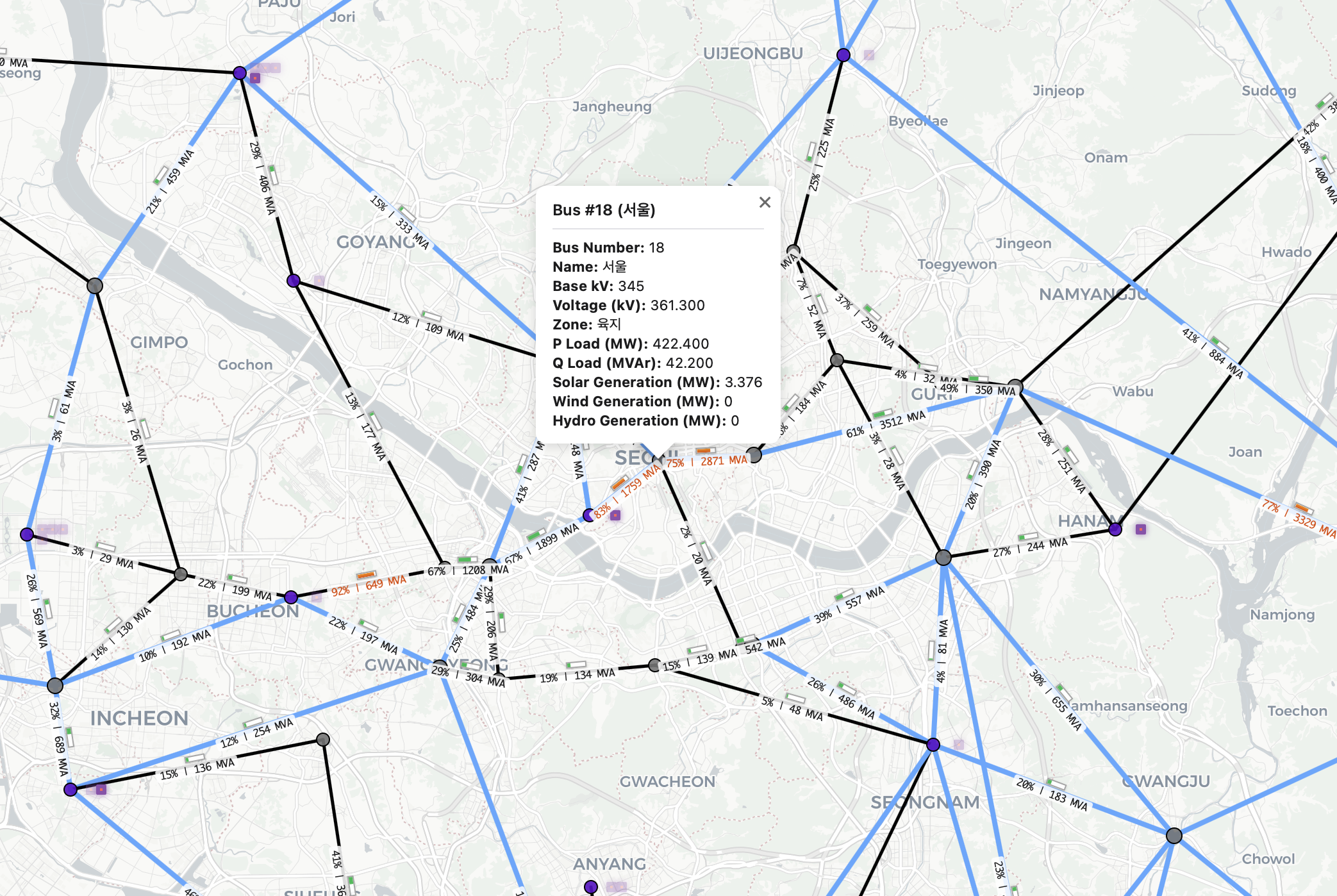
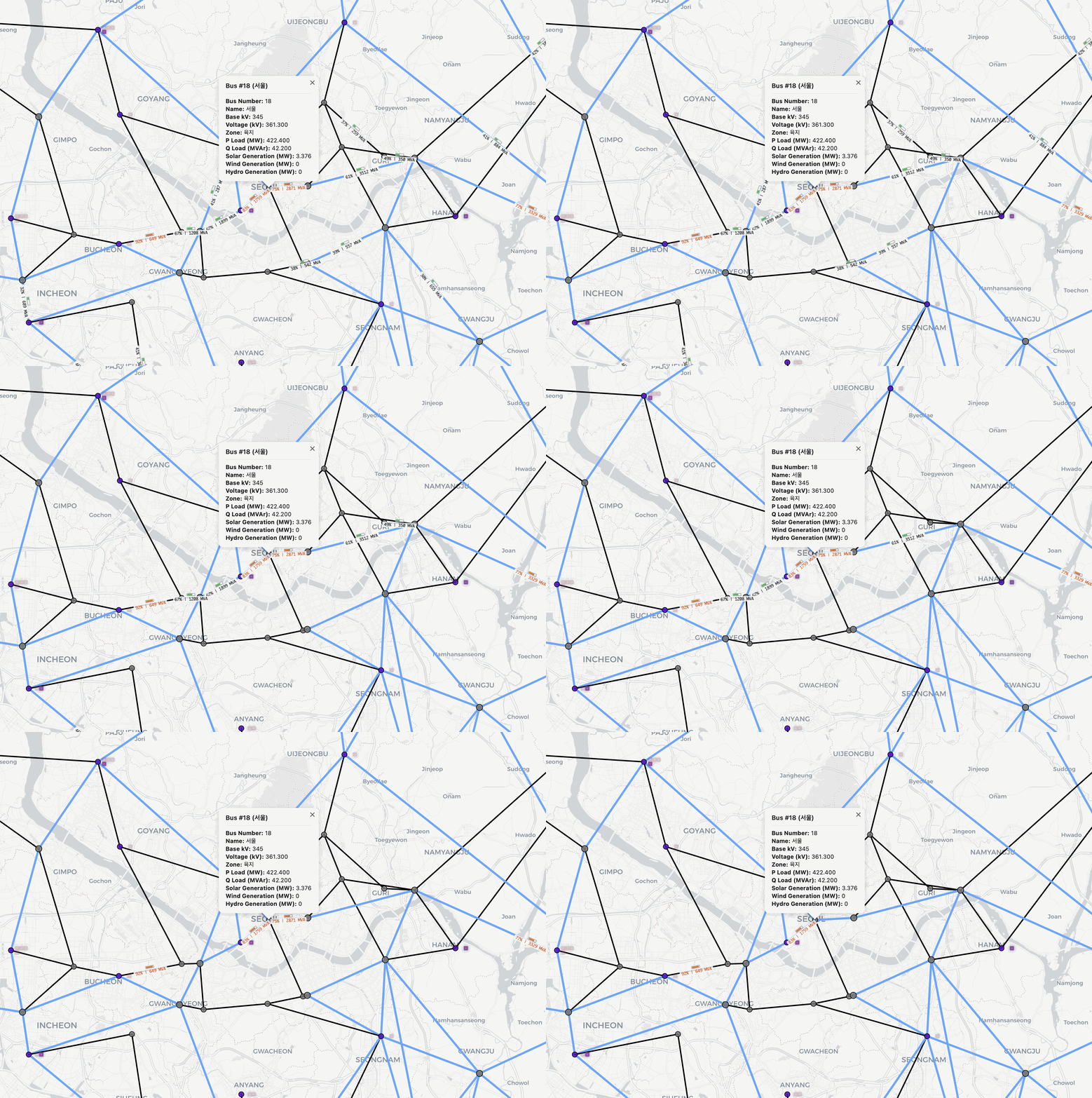
Example: adjusting the Min Loading Threshold (20% ~ 80%) slider changes the displayed Loading Bars.
Bus Voltages
- You can toggle which Bus voltage levels are displayed:
- 765 kV
- 345 kV
- 154 kV
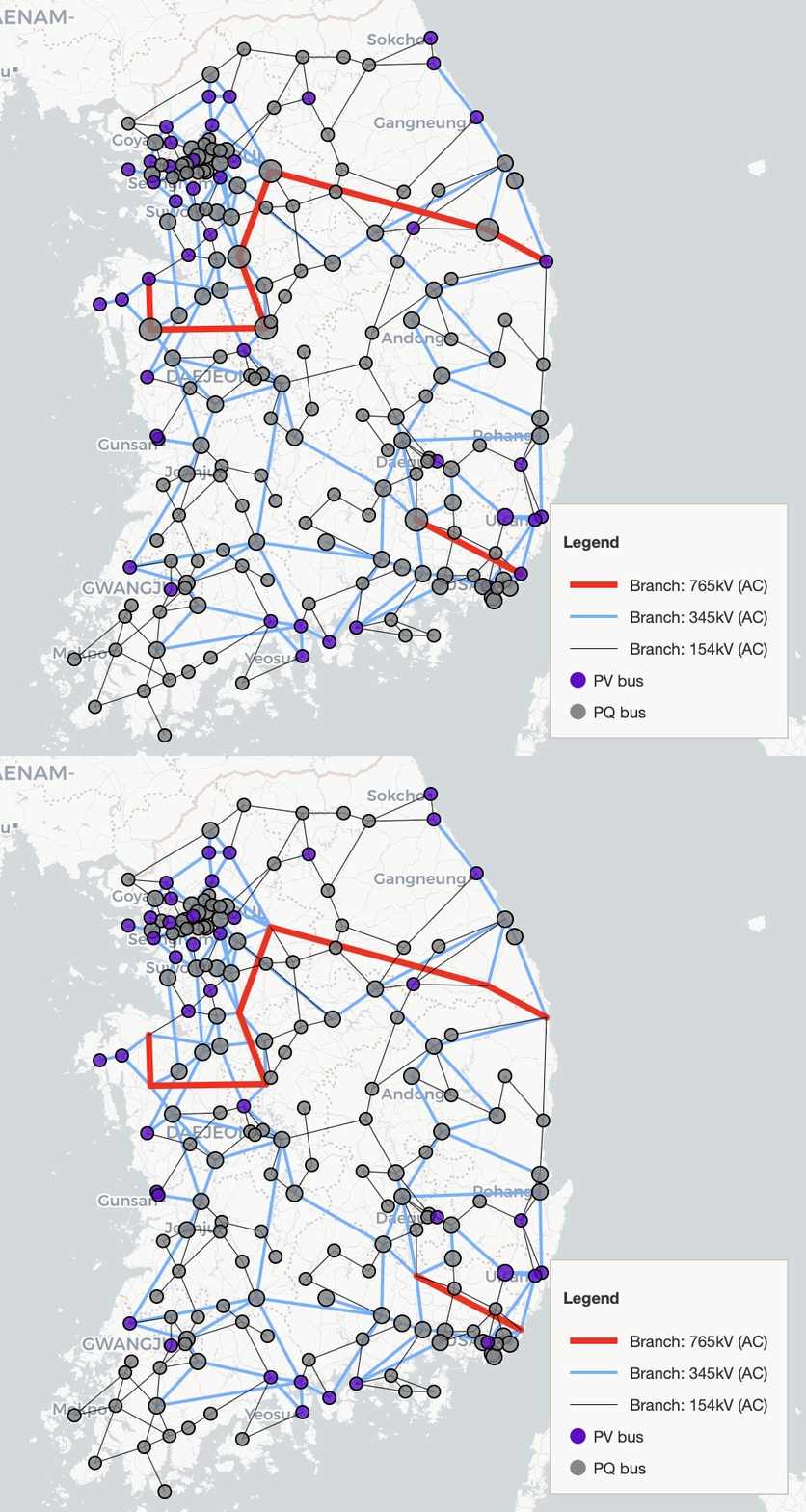
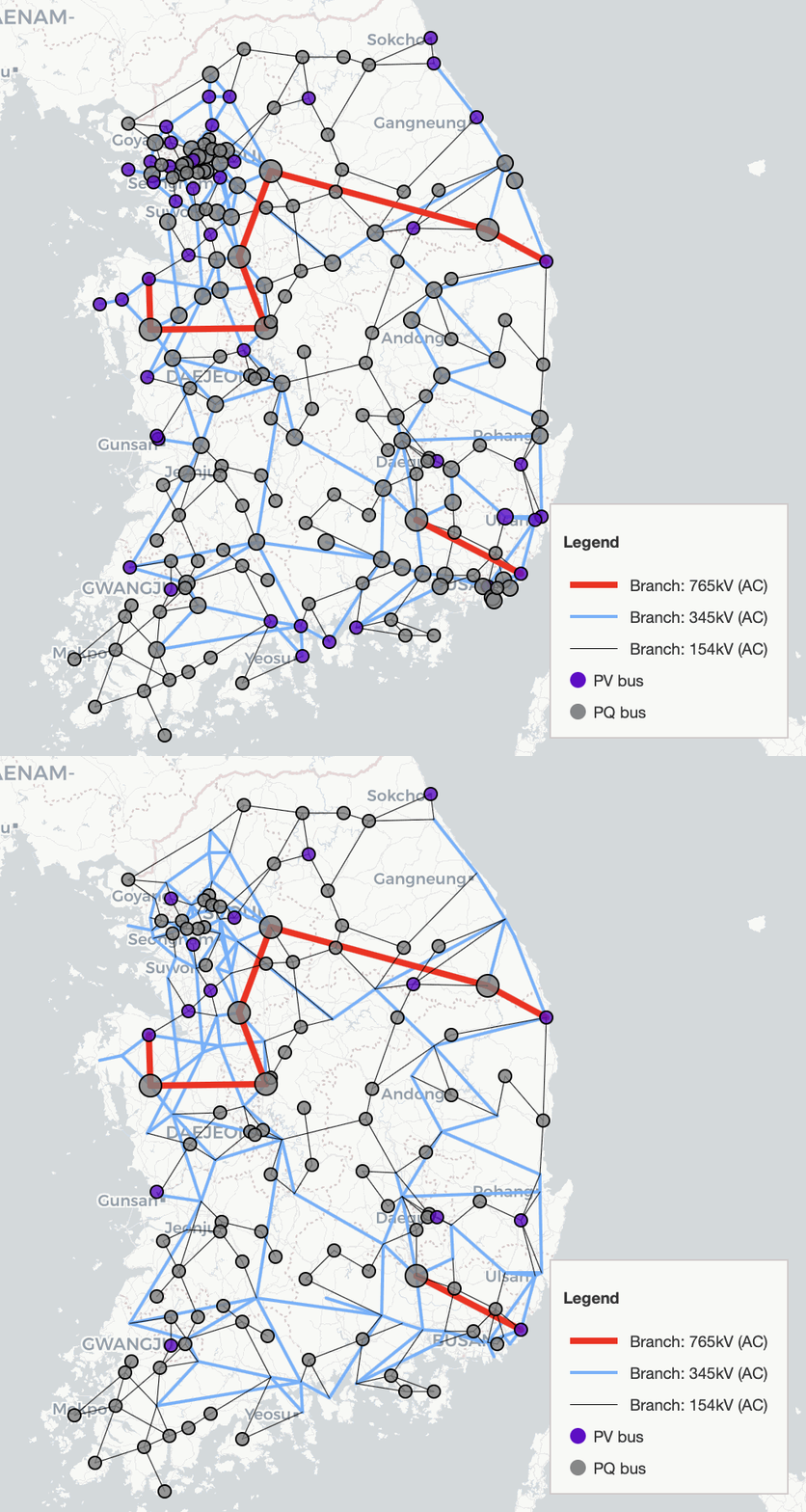
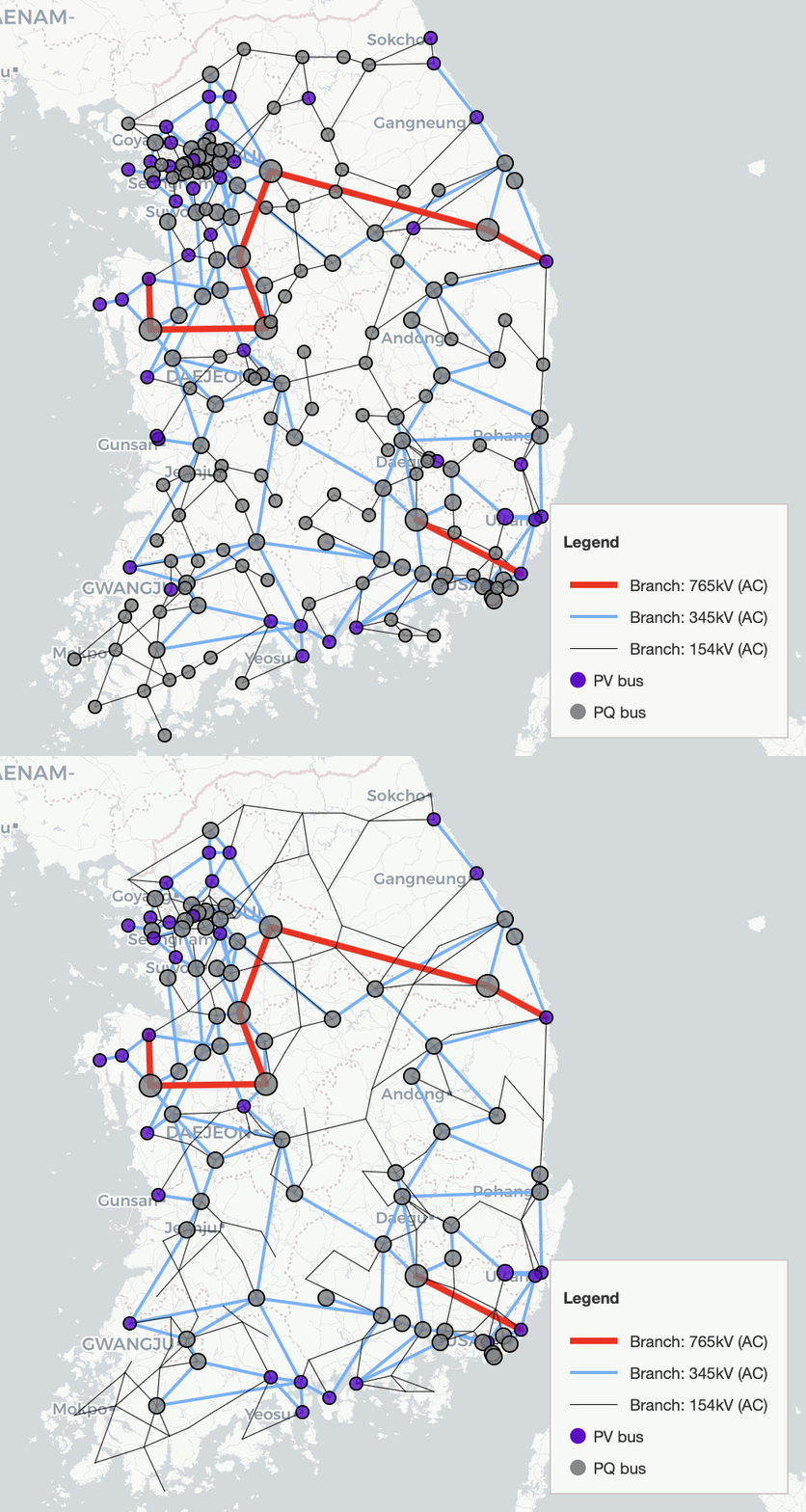
Service Status
- Service status controls let you filter which components are displayed based on their in-service state.
- For each component type (Bus, Generator, Lines), you can select one of:
- ON: show only in-service / active elements
- OFF: show only out-of-service / inactive elements
- ALL: show both ON and OFF elements
3. Details/Selection
Select All Displayed
- Add all currently visible elements to the selection list.
Clear List
- Clear the selection list.
Reset Colors
- Reset selection colors to defaults.
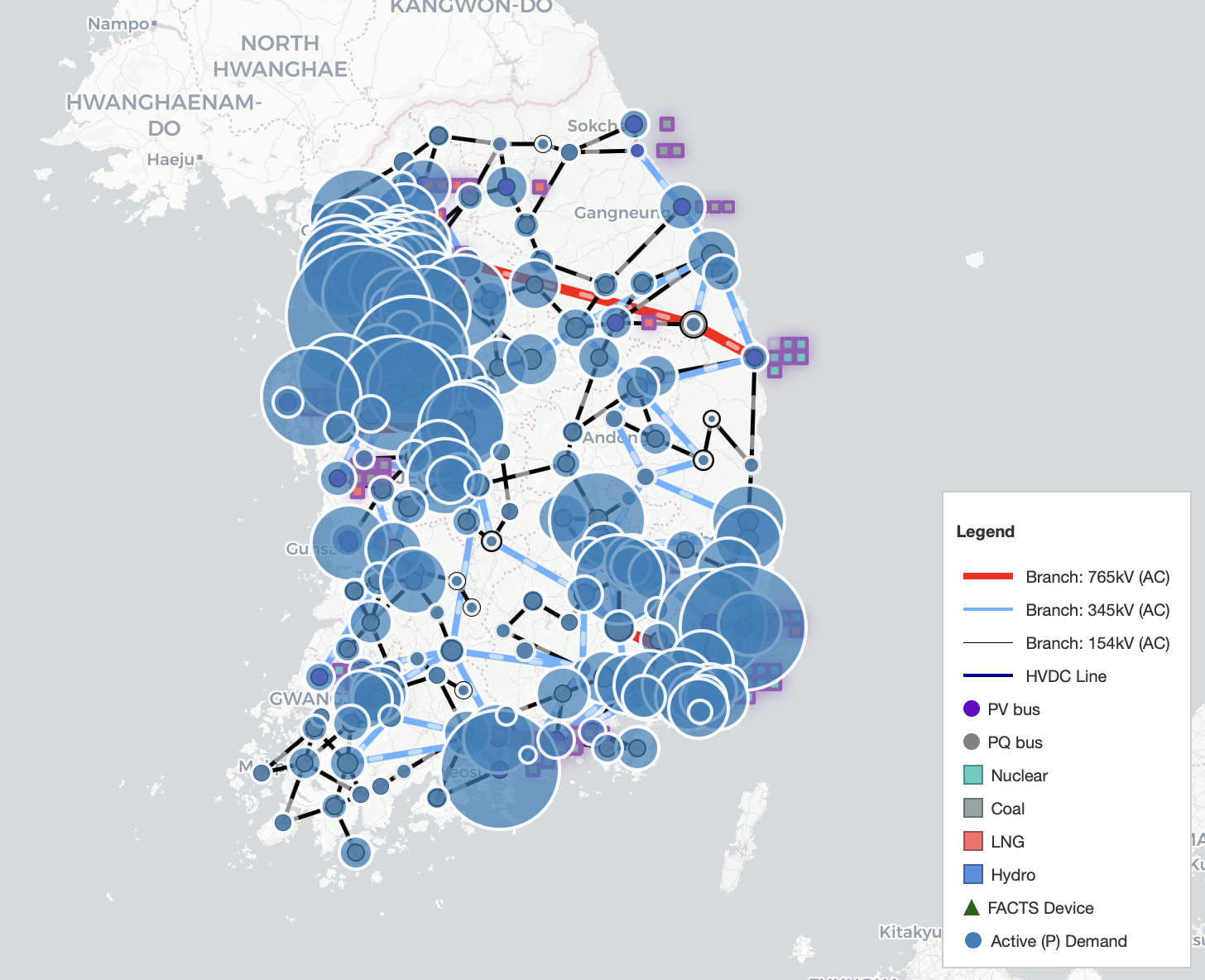
Preset
- The Preset dropdown provides predefined groups (e.g., regional bus ranges, regional generators, and inter-area tie lines).
- Selecting a preset automatically highlights and adds the corresponding elements to the selection list.
- The example GIF below shows the 수도권 모선 (Bus 1–51) preset.
Pflow / Qflow
- Use Pflow / Qflow to visualize branch power flows directly on the map.
- This view corresponds to the values shown in the Branch popup (e.g., P Flow (MW) and Q Flow (MVAr)).
Labels (Bus/Line/Gen)
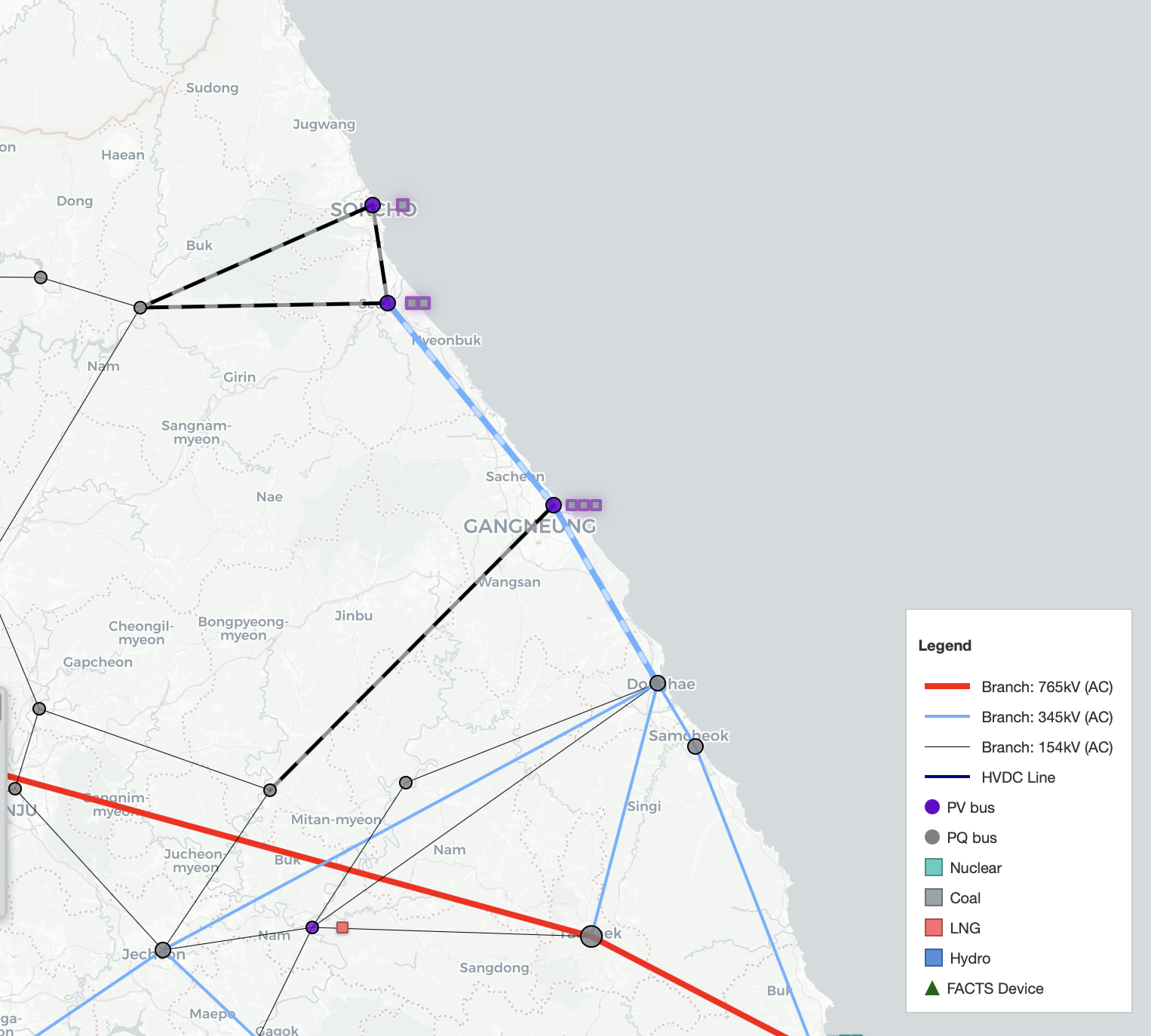
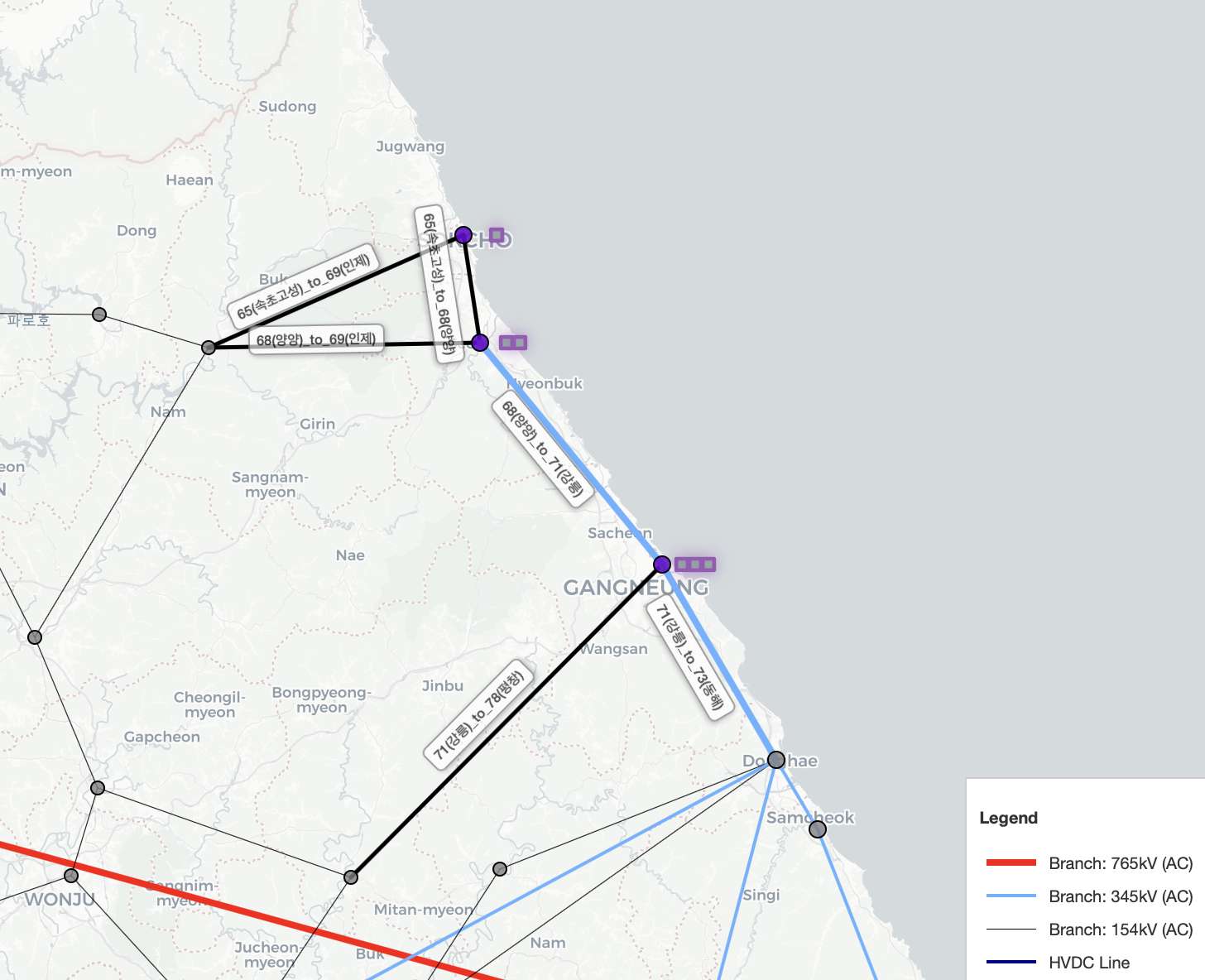
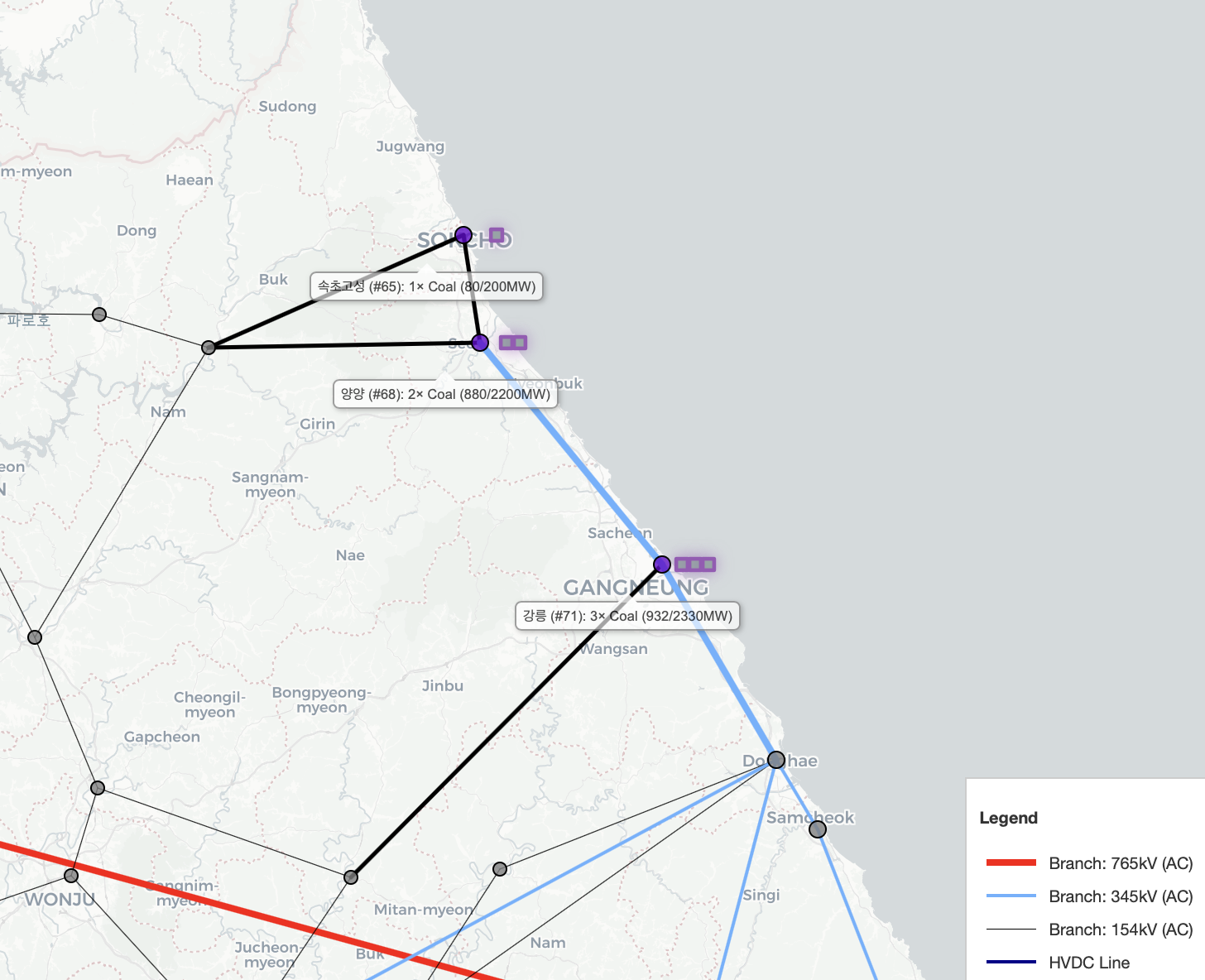
- Use the label toggles to show names/IDs directly on the map (useful when zoomed in).
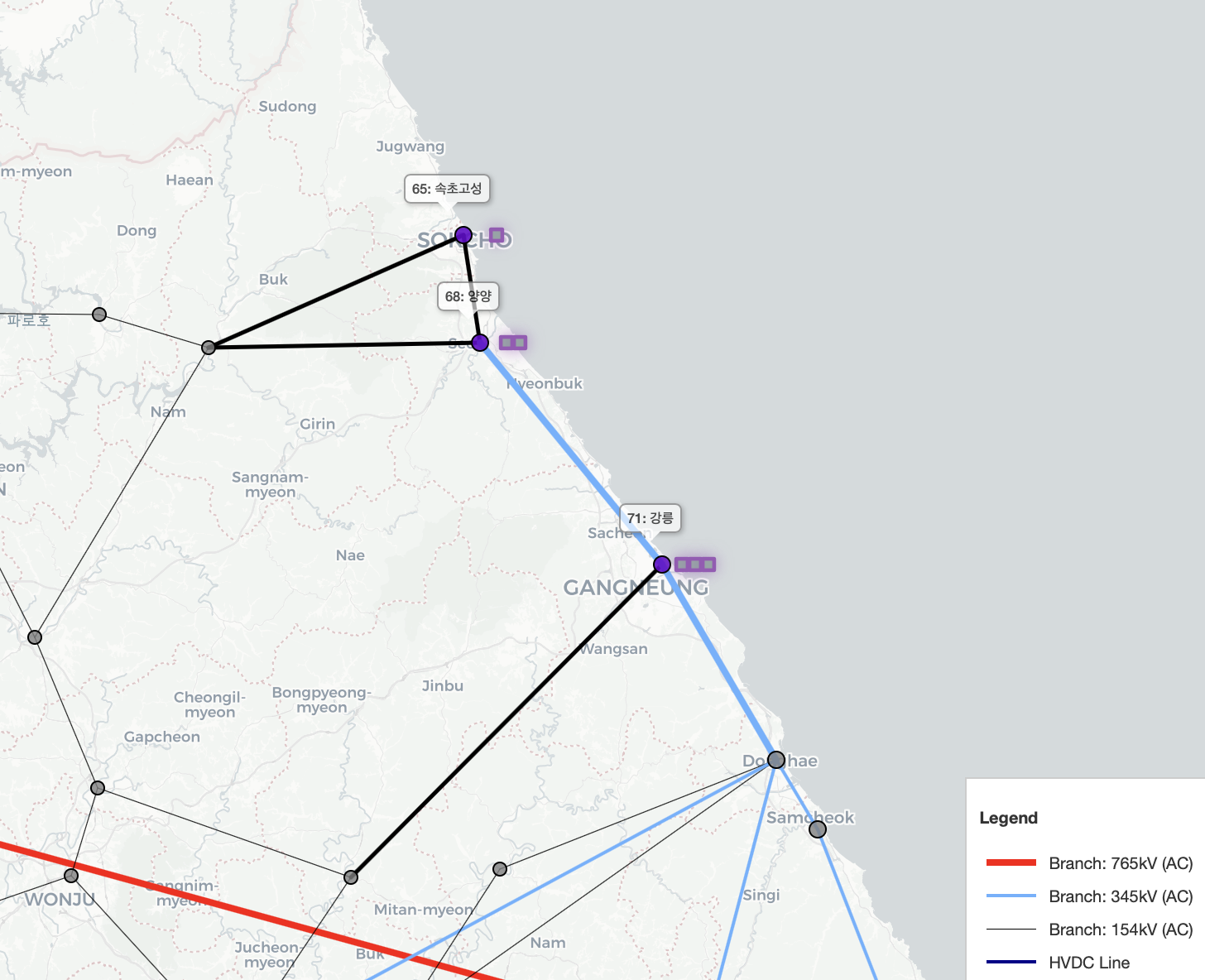
- Bus labels show the bus ID and name (e.g.,
65: 속초고성). - Line labels show the from/to endpoints (e.g.,
65(속초고성)_to_69(인제)). - Generator labels summarize generators at a bus (e.g., number of units, fuel type, and MW output/capacity).
Selection Mode
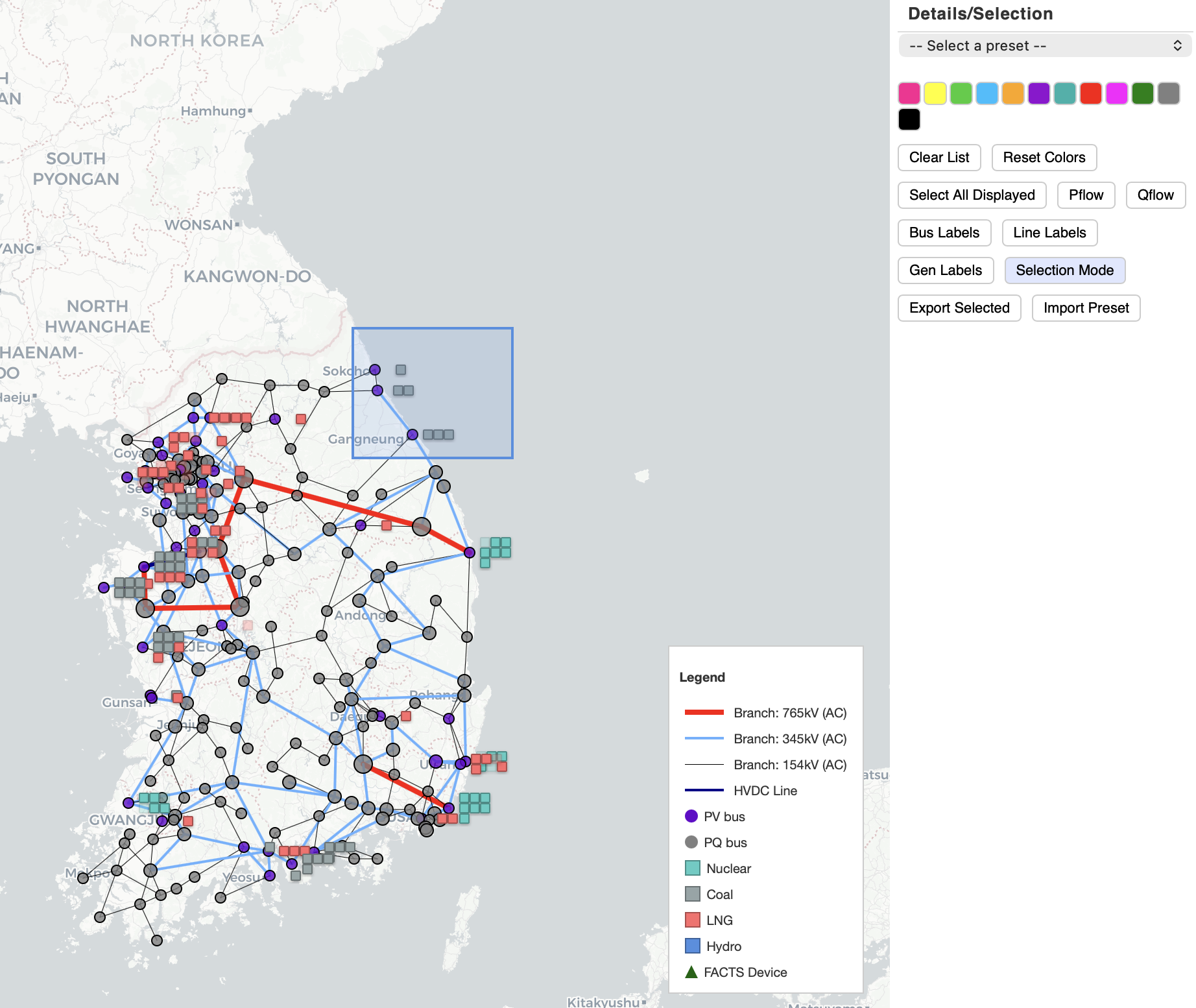
- Selection Mode lets you select multiple elements directly on the map using a drag box (marquee selection).
- Toggle it with V (see Help -> Keyboard Shortcuts).
- Drag to draw a rectangle: all elements inside the box are added to the selection list on the right.
- This is useful for quickly collecting a set of buses/branches/generators for exporting or focused analysis.
4. Economics & Fleet Monitor
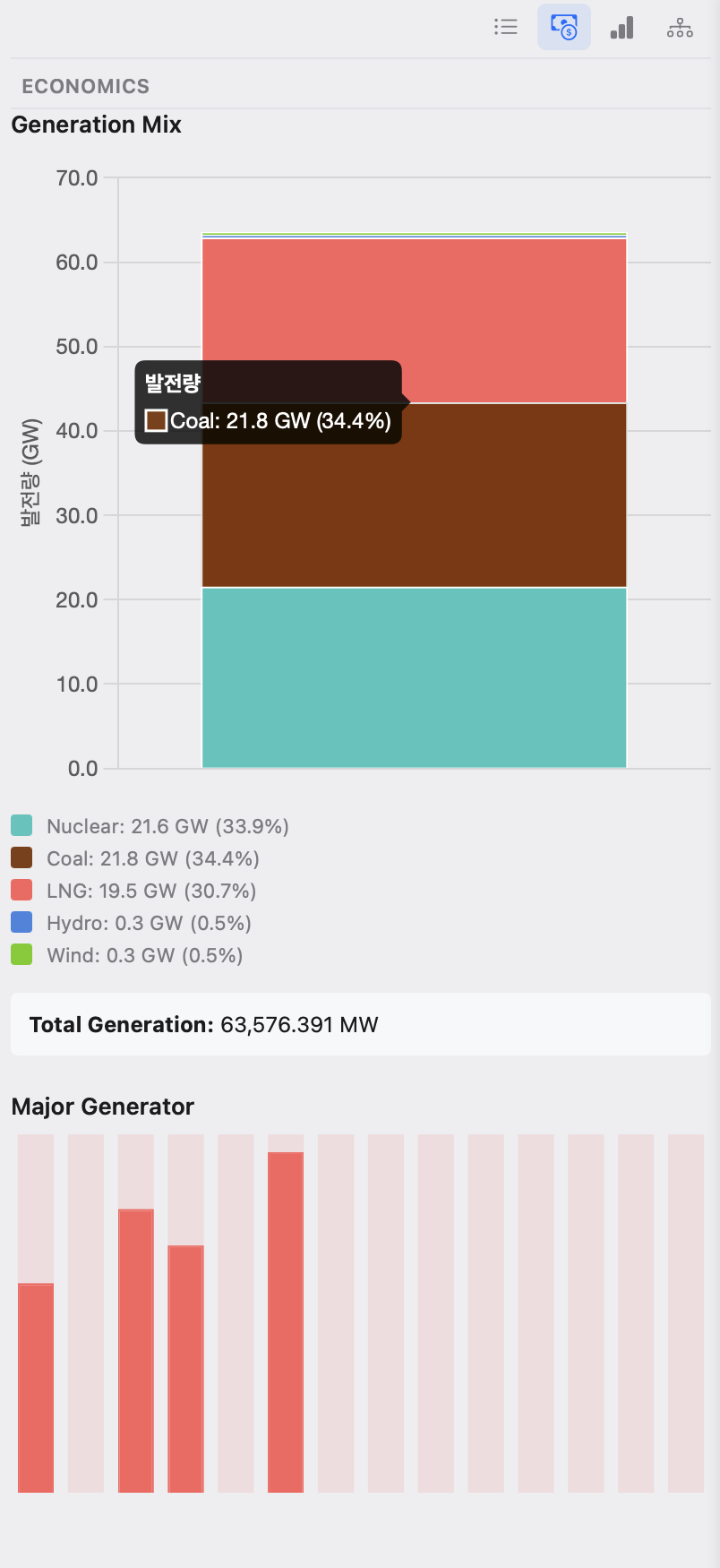
Economics
- Generation Mix: showing total generation by fuel type (hover to see each fuel’s output and share).
- Total Generation: system generation for the selected hour/time step.
- Major Generator: the highest-output generators to quickly identify dominant units.
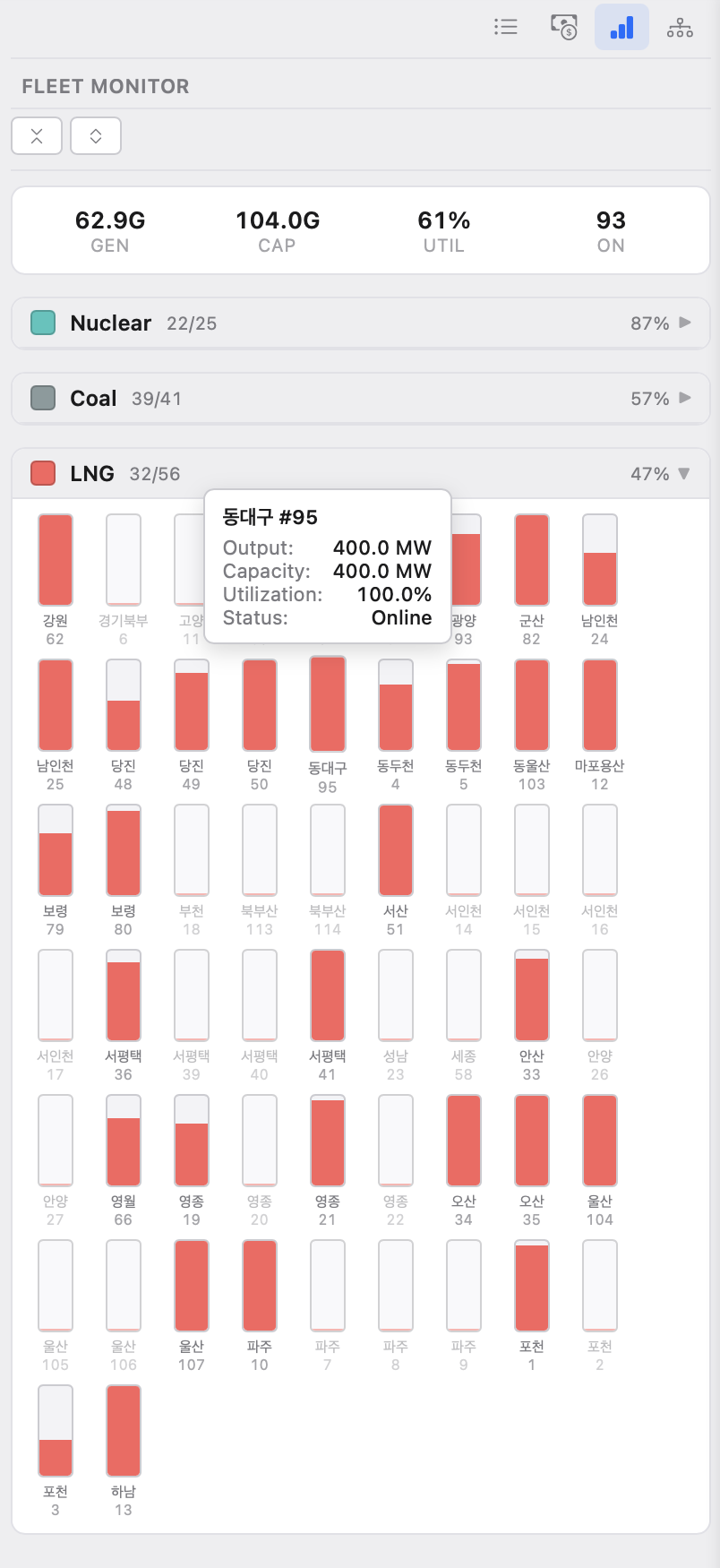
Fleet Monitor
- Summary: quick KPIs for fleet status (total generation, total capacity, utilization, and number of online units).
- Cap by Fuel Type: each unit is shown as a small bar where fill indicates current output vs capacity (hover for unit details).
5. Bus Detail View
The Bus Detail View provides a compact “single-line” snapshot centered on a selected bus.
- Enter the bus info: enter the bus and then it shows the selected bus in the center and all directly connected neighboring buses/branches.
- Branch loading: each connected branch displays a loading bar (%), matching the line-loading concept used on the main map.
- P/Q flow direction and magnitude: arrows indicate flow direction; numeric values show the corresponding P (MW) and Q (MVAr) on each side of the branch.